Document: UserManual.md Version: 1.0.0 Applies to: the application as it stands on 14 August 2026 Audience: the people who run a print shop, sign shop or studio on Proofavo — and, in chapter 6, the customers they send proofs to
About this manual
Proofavo replaces the email thread that artwork approval usually turns into:
Email → attachment → reply → new attachment → reply → "is this the latest version?"
with one project, one link, and a record of exactly which file was approved.
Every screenshot here was taken from the running application by
scripts/capture-manual-shots.mjs, which signs in, creates the proofs, uploads
the artwork, opens the review link the way a customer does, comments, requests
changes, revises and approves. Nothing on these pages is a mock-up. See
Keeping this manual current if the interface has
moved on.
Contents
- The idea in one page
- Signing in and finding your way around
- The dashboard
- Starting a proof
- Sharing the review link
- What your customer sees
- Handling a change request
- Versions and comparing them
- Approval and the approval record
- Archiving and reopening
- Customers
- Settings
- Plans and limits
- Troubleshooting
- Reference
1. The idea in one page
Five words carry the whole product.
| Word | What it means |
|---|---|
| Workspace | Your shop. It holds your proofs, your customers, your people and your plan. Your clients are never members of it. |
| Project (proof) | One job going out for approval — "Spring open days poster". It has a customer, a status, and a stack of versions. |
| Version | One uploaded file. Versions are numbered, never overwritten, and exactly one of them is current. |
| Review link | A secret URL, one per project, that lets your customer view, mark up and decide — with no account, no password and no app. |
| Approval record | A timestamped PDF naming who approved which version, with the file's SHA-256 fingerprint. Operational evidence, not a legal certificate. |
The workflow those five words make:
Start a proof  →  upload artwork  →  publish  →  share the link
      ↑                                                  ↓
      └──── upload a new version ←── changes requested ←─┤
                                                         ↓
                                                     approved  →  approval record  →  archive
A project is always in exactly one state:
| Status | Meaning | Your next move |
|---|---|---|
| Draft | Created, no published artwork yet | Upload artwork |
| Ready to share | Published, but the customer has not been given the link | Copy or send the link |
| Waiting for Review | The customer has the link and has not decided | Wait, or nudge |
| Changes Requested | The customer sent notes | Upload a new version |
| Approved | A specific version was approved | Download the record, print the job |
| Archived | Put away; the review link is paused | Unarchive to bring it back |
"Ready to share" and "Waiting for Review" are the same underlying state. The wording changes once the customer has actually been given the link, because until then nobody is waiting on them — the next move is yours.
2. Signing in and finding your way around
Signing in
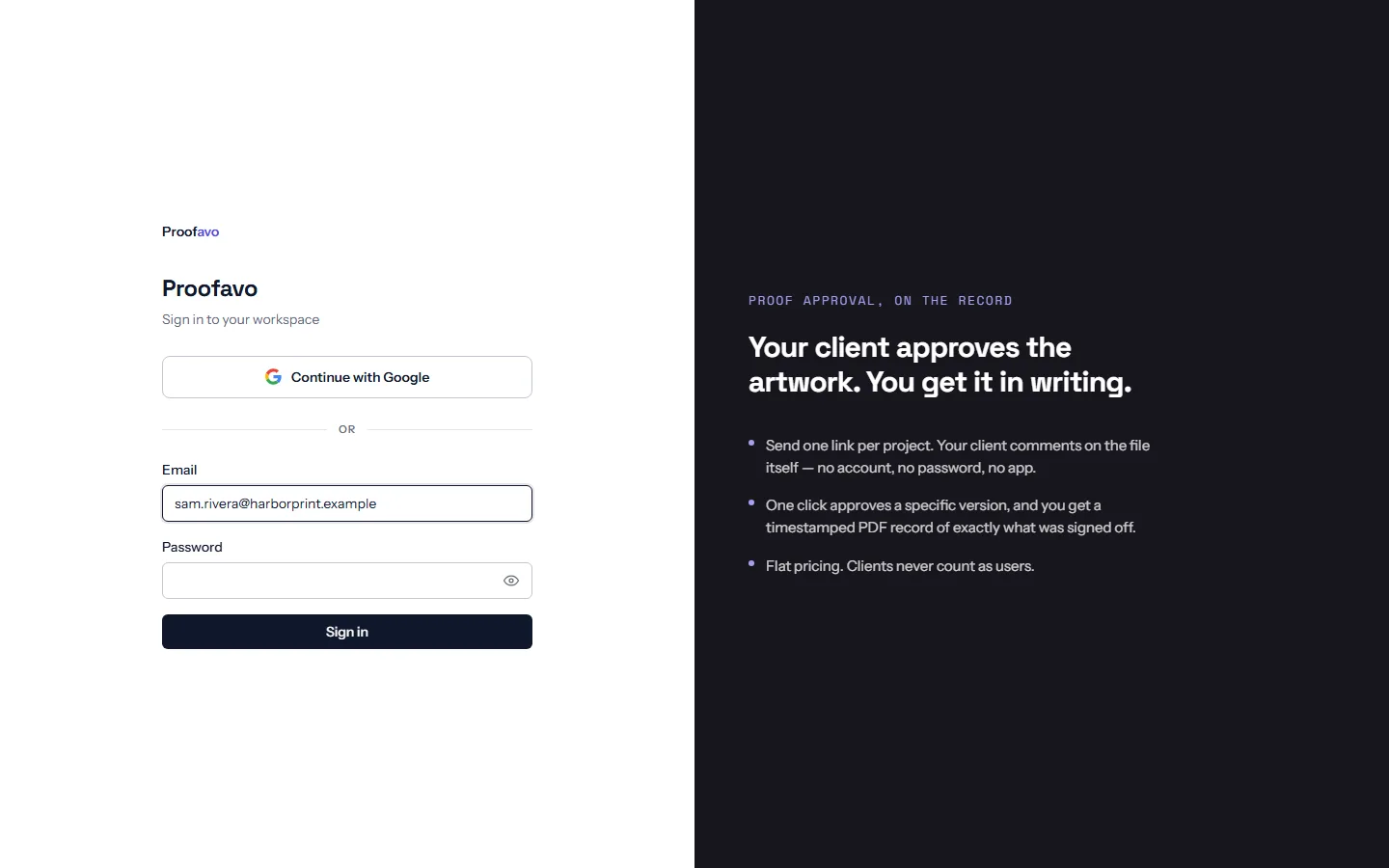
Two ways in: Continue with Google, or your email address and password.
Both land you in your workspace at /app.
New here? Start free (on the sign-in page, or /signup) opens a workspace
of your own. Continue with Google and you are asked for your business name
straight away; or type your email address and we send you a link that asks for
the business name and a password. A colleague invited into an existing
workspace does not sign up — the invitation email is their way in.
Forgot your password? The link beside the password field asks for your
sign-in address and emails you a link to choose a new one. The page says the
same thing whatever you type — it does not reveal which addresses have
accounts — so if nothing arrives within a few minutes, check spam and check that
it is the address you sign in with. The link works once, for about an hour;
asking again sends a new one and the older link stops working. If you usually
continue with Google, you can simply do that instead. Still stuck? Write to
support@proofavo.com.
An invited colleague pressing Join the workspace in their invitation email lands on Choose how you sign in, which offers the same two ways: Continue with Google, or a password for the address the invitation was sent to. Google needs no password at all. Either way, use the address the invitation names — it is what puts you in the workspace.
If you have just accepted an invitation and land on "You are signed in, but not in a workspace yet", reload once — the invitation is claimed on the next request.
The shell
Everything inside the product sits beside a dark rail:
- New Project — the button at the top, always there
- Dashboard, Customers, Archive — the three places
- the plan meter at the foot — active projects used out of your allowance
- your shop's name, your role and your address, with a ⋮ menu holding Settings and Sign out
On a phone the rail collapses to a tab bar fixed to the bottom of the screen with the same four destinations.
3. The dashboard
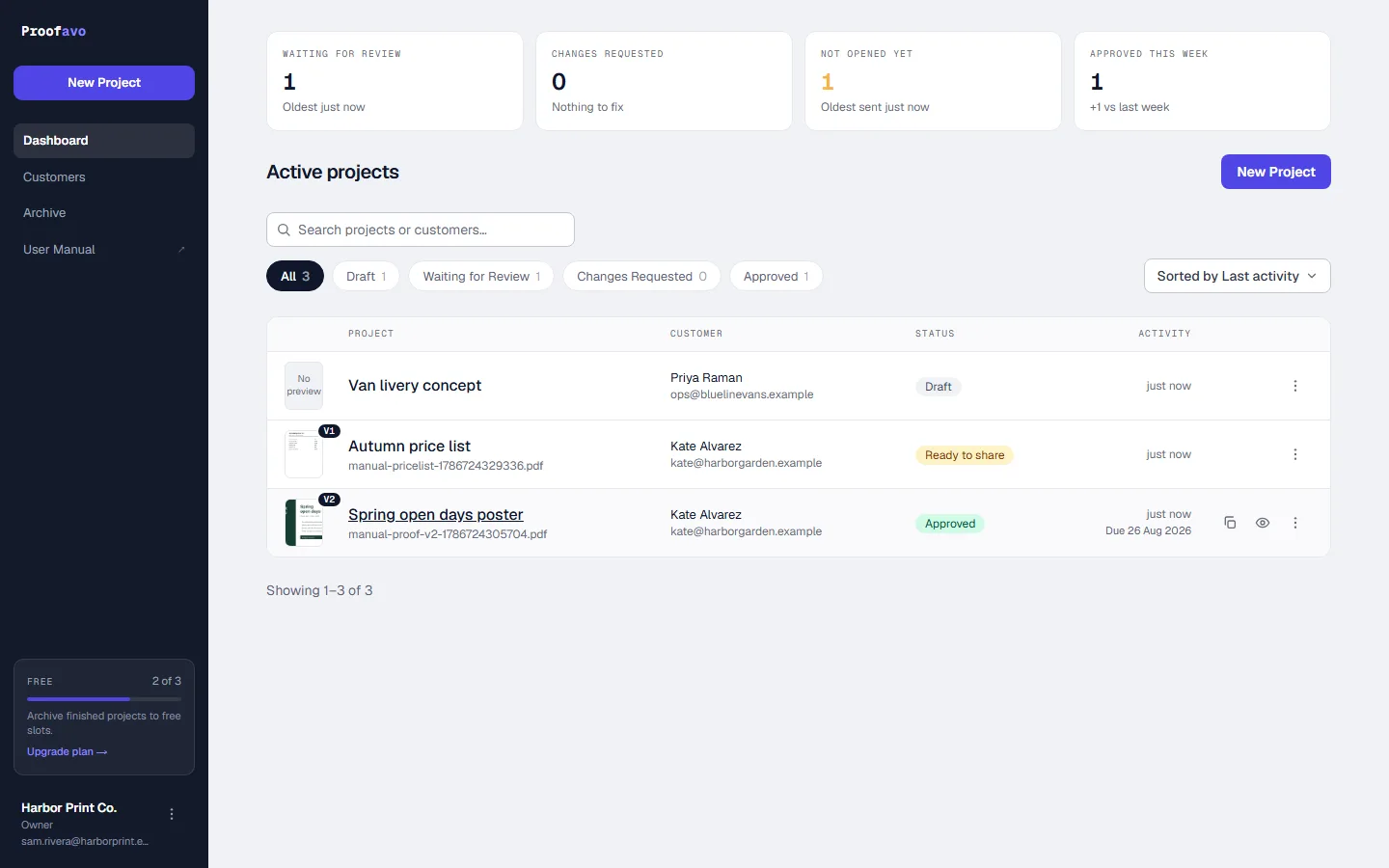
The four tiles answer "what needs me?" before you read a single row: Waiting for review, Changes requested, Not opened yet (the customer was sent a link and has not opened it), and Approved this week with the change against last week. When something is genuinely stuck, a Needs your attention band appears above them naming the proofs and why.
The list shows a thumbnail of the current artwork, the project name, the customer, the status and the last activity. Above it:
- a search box matching project names, customer names and email addresses
- status filters with counts — All, Draft, Waiting for Review, Changes Requested, Approved
- a sort control — last activity, newest, oldest, project name, status
The ⋮ menu on a row carries the actions that belong to that proof without opening it: Upload new version, Copy review link, Preview as customer, Record customer approval, Archive.
A row's version badge (V1, V2) shows which version the thumbnail is of. A thumbnail marked as not yet sent means artwork is uploaded but unpublished — your customer cannot see it.
4. Starting a proof
Press New Project.
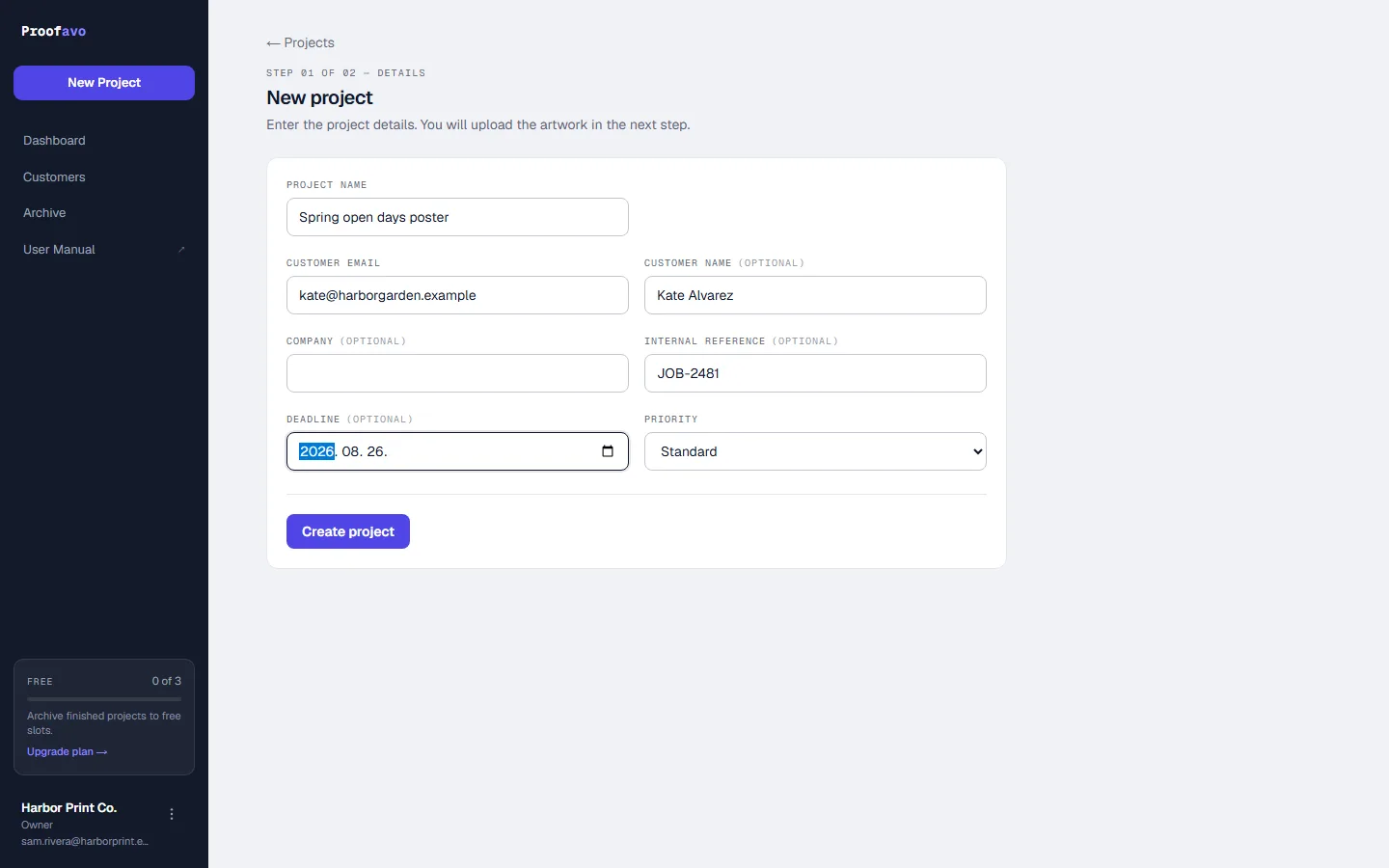
| Field | Notes |
|---|---|
| Project name | What you and your customer will call this job. It never changes when you upload a new file. |
| Customer | Pick an existing customer, or leave it on New customer and type an address. |
| Customer email | Required. This is who the proof is for. |
| Customer name | Optional, but it is the name that appears on the approval record. |
| Company | Optional, internal. Only offered while creating a new customer. |
| Internal reference | Optional — your job number. Shown to you, and on the approval record. |
| Deadline | Optional. Shown on the proof and the dashboard row. |
| Priority | Standard or Rush. A rush proof is chipped in the list. |
One email address is one customer per workspace. Type an address that already exists and the form says whose it is and files the project under that customer rather than creating a second one.
Press Create project and you land on the proof, in Draft:
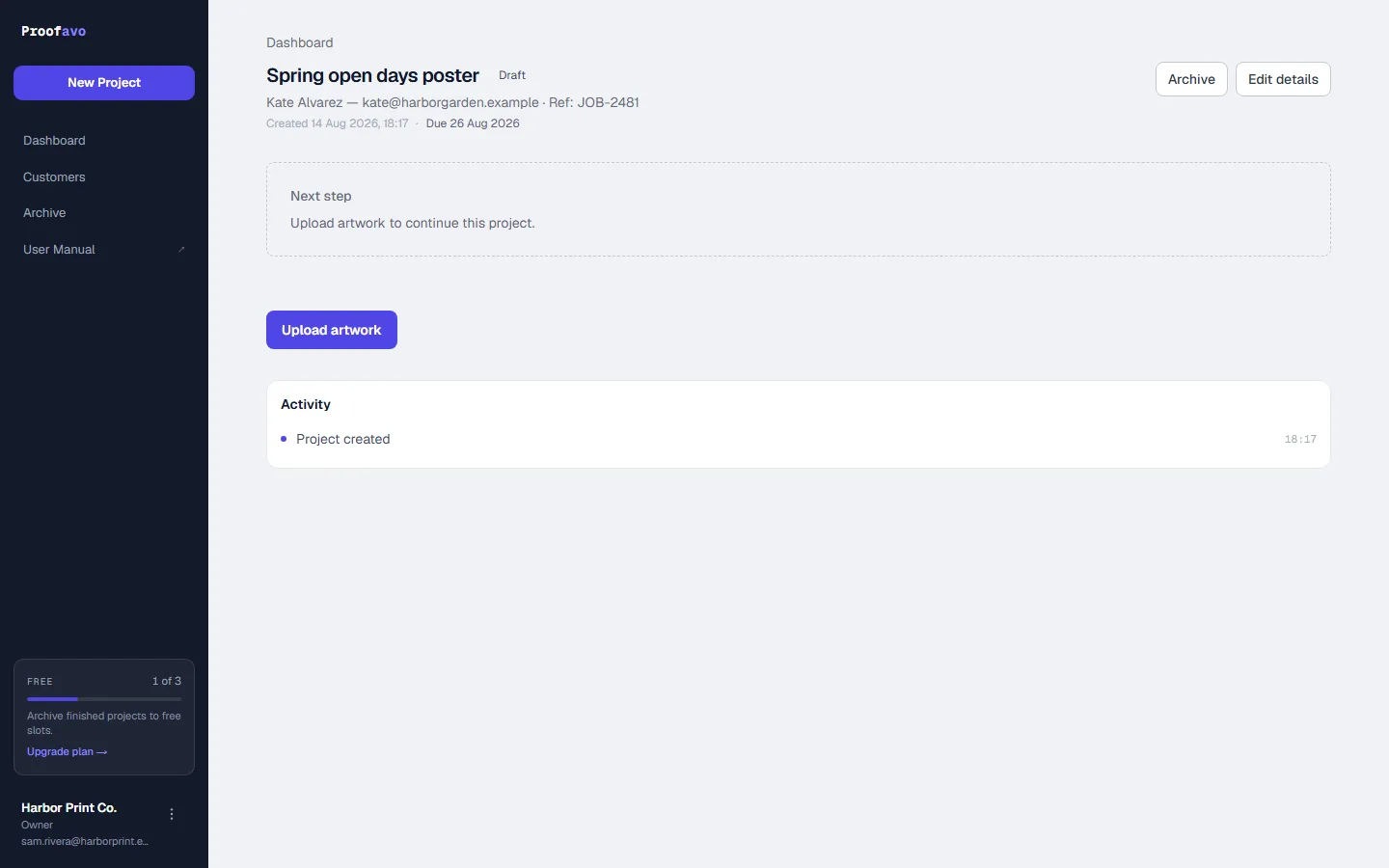
Uploading artwork
Upload artwork opens the uploader:
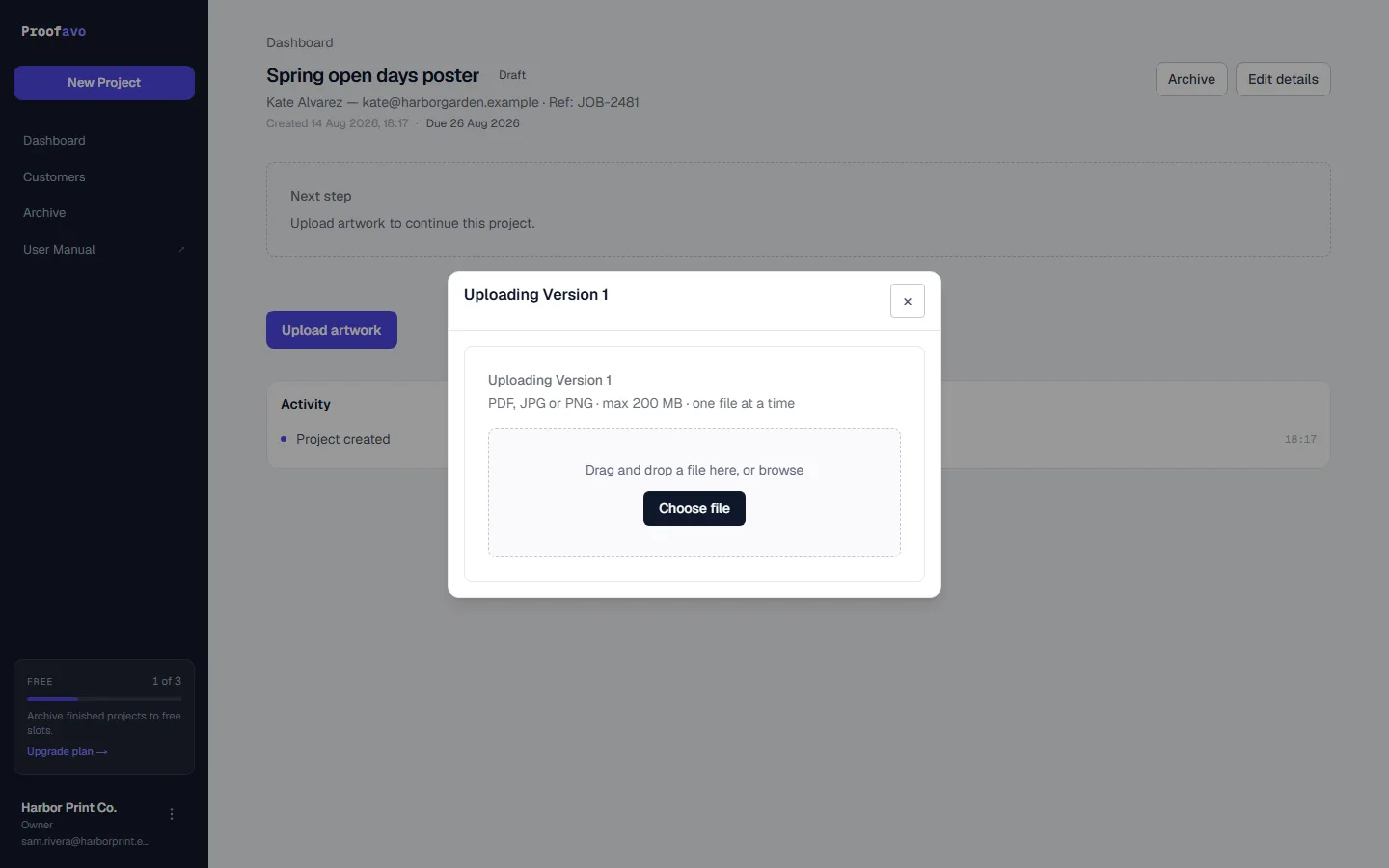
- PDF, JPG or PNG, one file at a time, up to 200 MB
- multi-page PDFs are supported up to 100 pages — the reviewer gets page navigation
- the original file is stored unchanged; the preview is generated from it
When the preview is ready the proof shows the artwork with a pending badge and a publish panel:
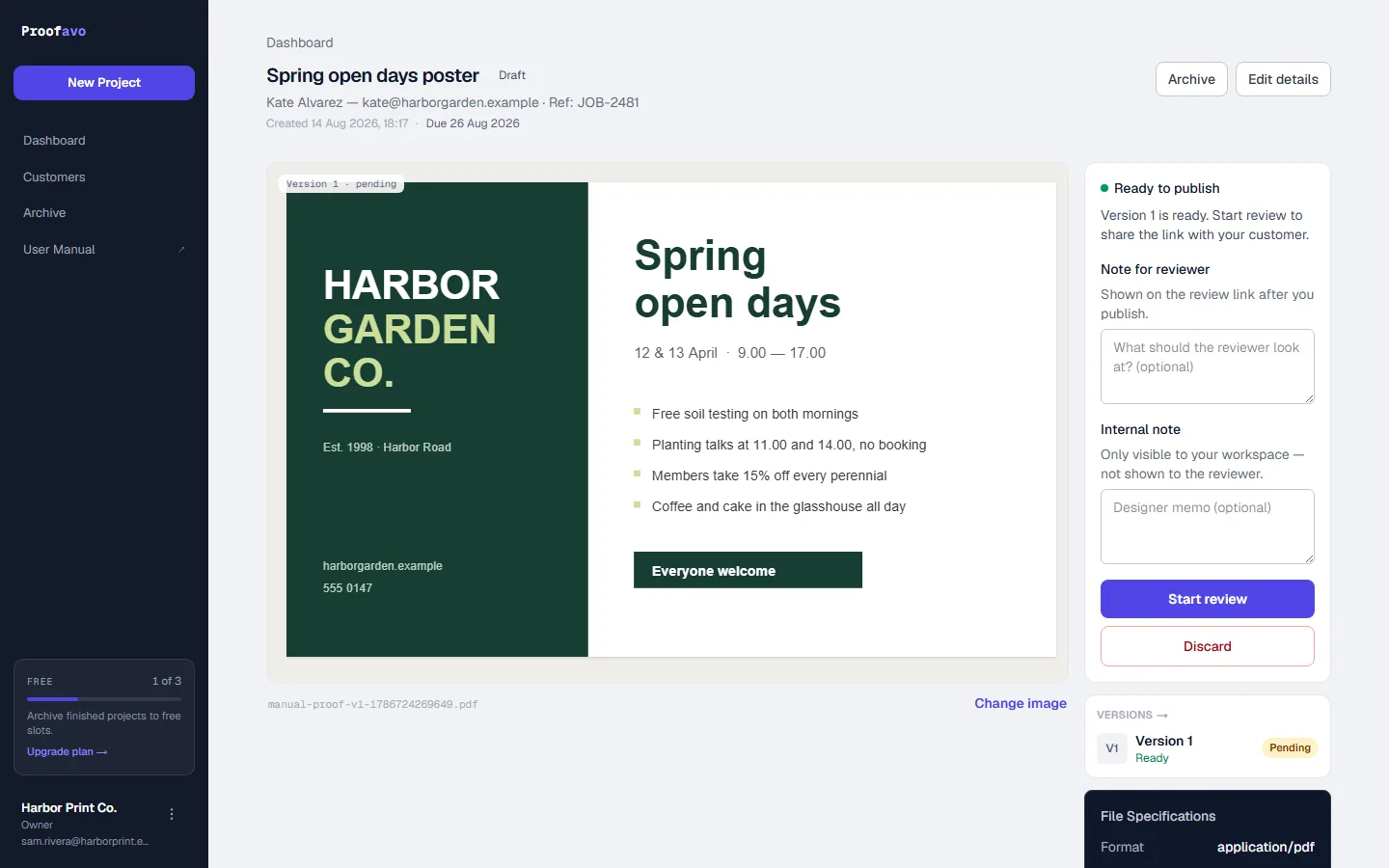
| Control | What it does |
|---|---|
| Note for reviewer | Optional. Shown to your customer on the review link once you publish. |
| Internal note | Optional. Visible only inside your workspace. |
| Start review | Publishes the version. It becomes current, and only now can the customer see it. |
| Discard | Throws the pending upload away. Nothing was ever shown to the customer. |
| Change image | Swap the file before publishing. |
Nothing is sent to anybody when you publish. Publishing and telling the customer are two deliberate steps.
If the preview fails, the version stays on the proof with the reason, an attempt count and two ways out: Retry, or Change file. A failed preview never becomes current, so your customer cannot land on a broken proof.
What the file says about itself
Under the artwork, File specifications now reads a print PDF and tells you what is in it before your customer ever sees it:
- Size — the page in millimetres, not just "1 page".
- Inks declared — CMYK, and every spot colour the file names. This is how you see at a glance that a Pantone survived, or that somebody flattened it.
- Worth checking — findings, not verdicts: RGB colour inside a print file, black text built from more than one ink, a spot whose name looks like a cut line rather than an ink, and how many objects switch overprint on.
"Declared" is the exact word. A PDF lists the colours a page may use, so an ink left behind by a deleted object is listed exactly like one the job runs. The list tells you what to look for; it does not tell you what the press will do.
Rich black is a good example of why these are findings rather than errors: it is right for a large headline and wrong for small body text, and only you know which one you are looking at.
5. Sharing the review link
Once a version is published the proof shows the share panel:
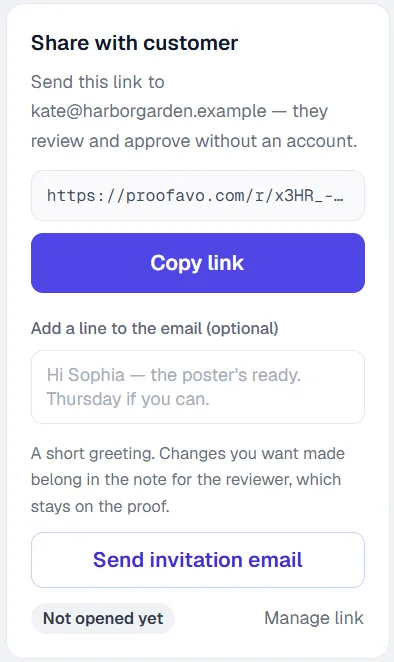
Create link makes the secret URL — https://…/r/<token> — one per project.
Then:
- Copy link puts it on your clipboard for email, WhatsApp or SMS.
- Send invitation email sends it from Proofavo, with an optional line of your own ("Hi Sophia — the poster's ready. Thursday if you can."). Changes you want made belong in the note for the reviewer instead; that one stays on the proof.
- Preview as customer opens the reviewer's view in your own session. Opens are not counted and the customer's controls are disabled — it is a look, not a visit.
- Manage link reveals Regenerate (new link; the old one dies at once) and Revoke (the customer loses access immediately).
Under the buttons, two facts about delivery:
- whether the invitation was sent, delivered, or bounced
- whether the link has been opened, and how long ago
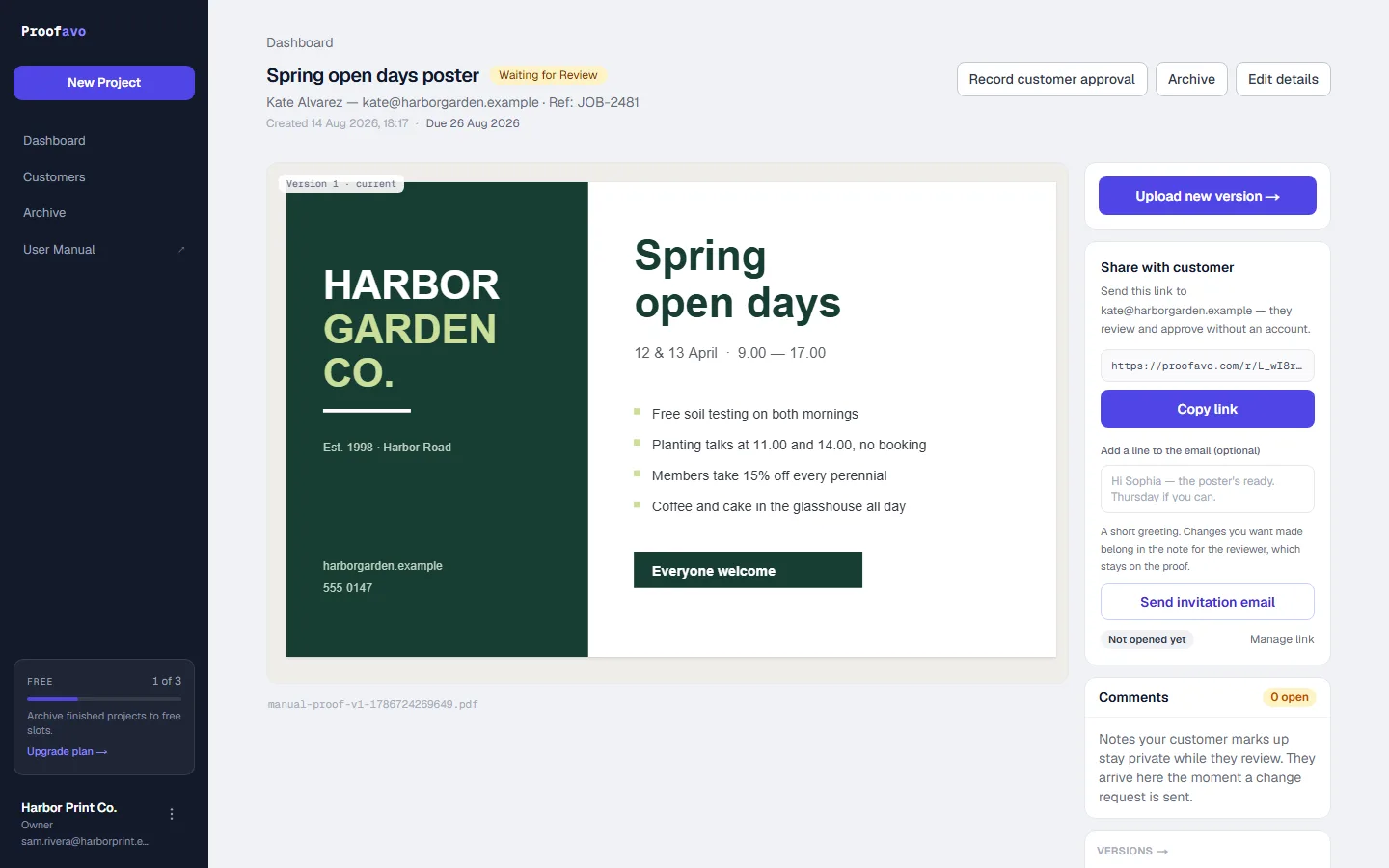
Reminders. If you send the invitation through Proofavo, one reminder goes out automatically after three days — and only if nobody has opened the link, commented, requested changes or approved. Any of those cancels it. There is only ever one reminder, and copying the link yourself schedules none.
Email allowance. Sending is metered on the Free plan (five customer emails a month). Copying the link is unlimited on every plan.
6. What your customer sees
This chapter is the part you can forward to a customer who asks "what do I have to do?"
Your customer opens the link and sees the artwork. No account, no password, no download:
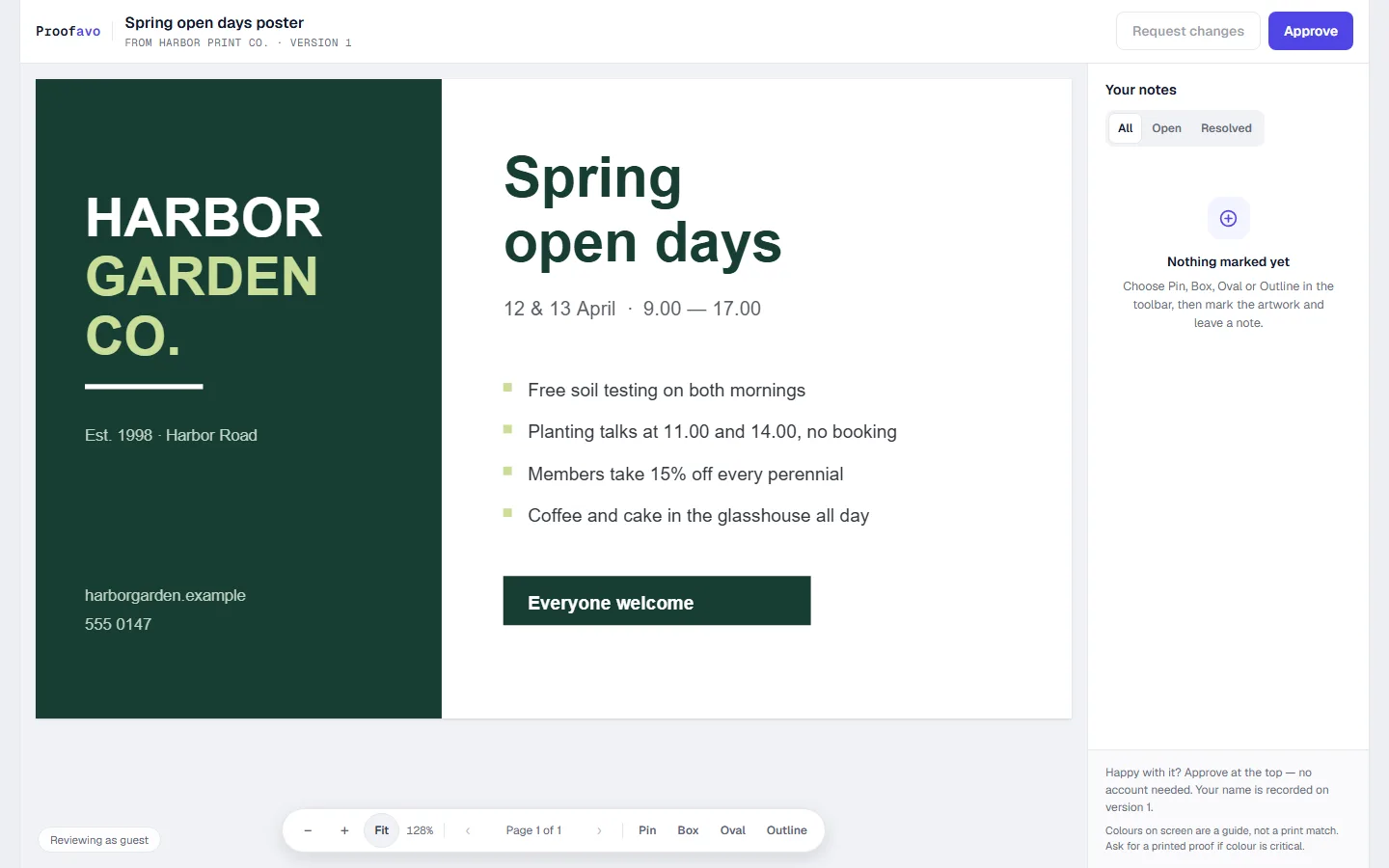
The toolbar at the bottom holds zoom (−, +, Fit, the current percentage), Measure and Barcode, page navigation for multi-page files, and four marking tools: Pin, Box, Oval and Outline.
Leaving notes
Choose a tool, then mark the artwork. Pin drops a marker at a point; Box and Oval are drawn by dragging across the thing they are about; Outline takes several clicks around an irregular shape and is finished with Close outline. Nothing is placed until a tool is chosen, so a stray click cannot litter the proof with markings.
A mark that contains what it is about beats a marker beside it — box the logo and nobody has to ask which logo. The note then asks for the text and, the first time, a name:
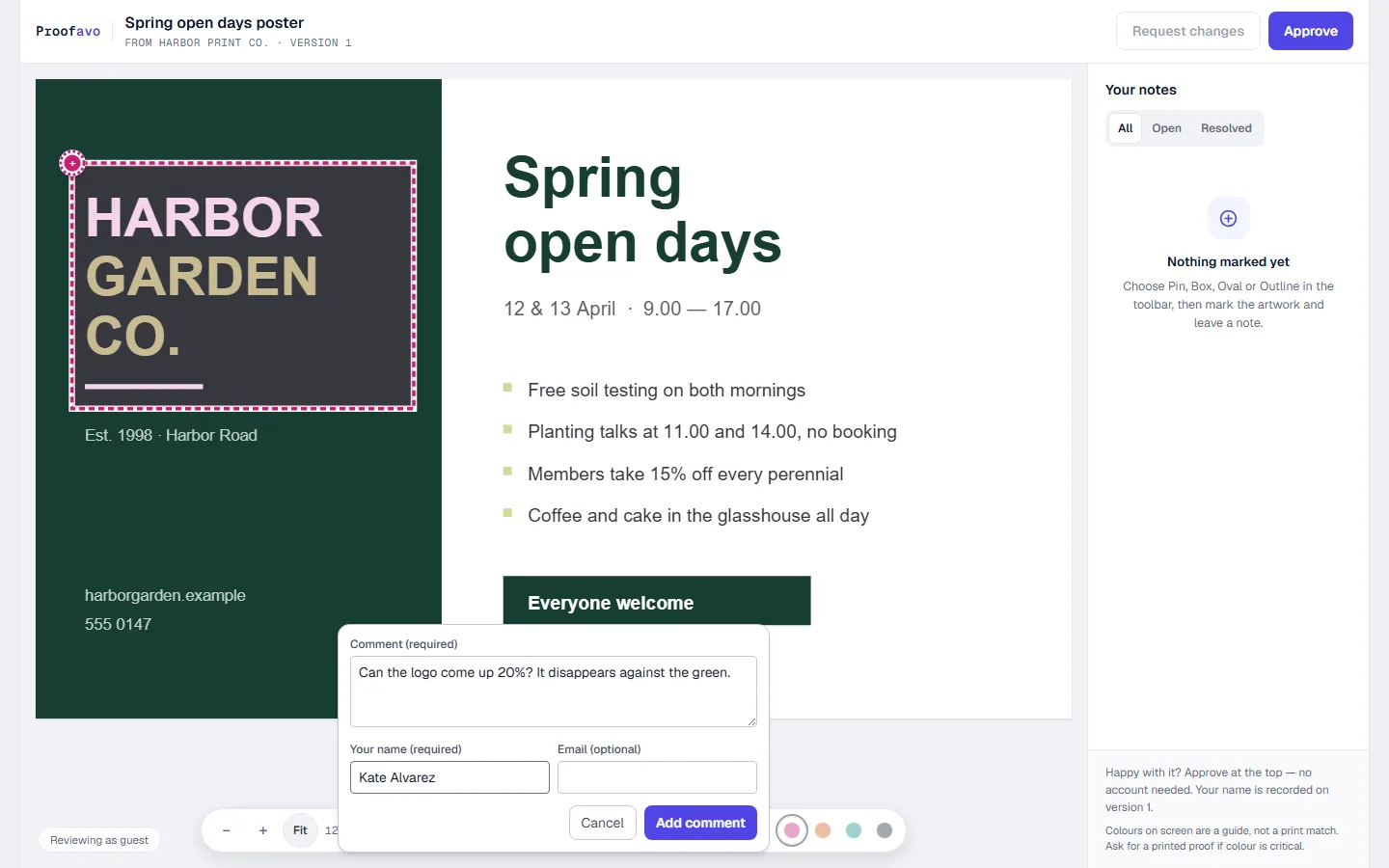
Each note is numbered on the artwork and listed under Your notes, where it can be edited or removed. A colour palette appears beside the tools once one is chosen; the colour carries no meaning, it is there so that several marks on one crowded page can be told apart — and the swatch beside each note in the list is how a mark and its text are matched up:
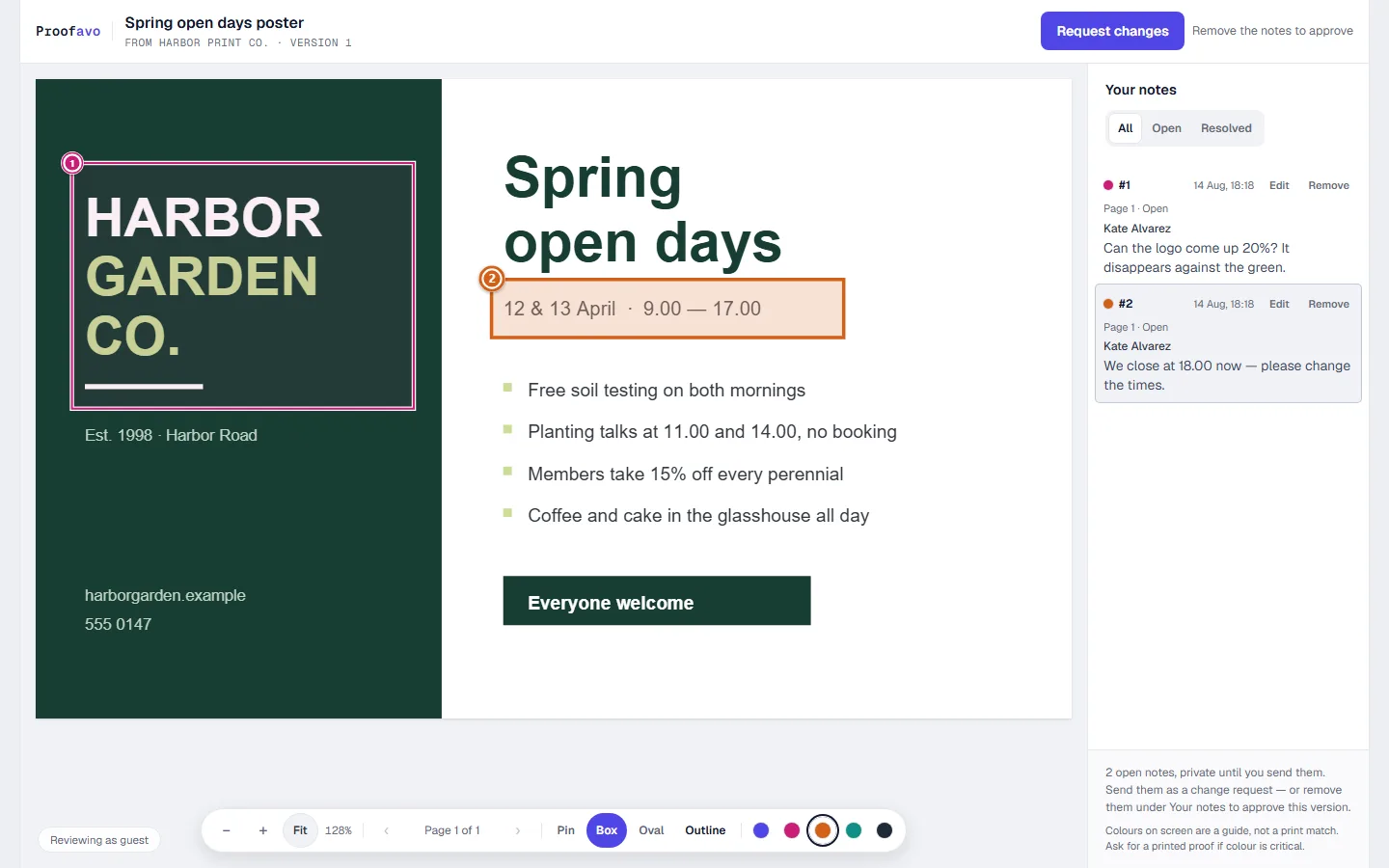
Notes are private until they are sent. Marking up the artwork does not tell the shop anything. The notes travel when the customer presses Request changes — which is also why the Approve button steps aside while notes are open, offering "Send the notes, or remove them".
While notes are waiting, an amber band sits above Your notes saying so by name — "You haven't sent these 2 notes yet. Acme Print won't see anything you've marked until you send it with Request changes." It stops the moment the change request goes, or the last note is removed.
Most browsers also raise their own "leave site?" prompt when the tab is closed on unsent notes. Treat that as a bonus rather than a safety net: a browser only offers it if the reader has clicked or typed on the page first, it does not apply to links inside the app, and phones generally skip it. The band is the part that is always there.
Measuring something
Measure answers "how big is that, really" without Adobe and without downloading anything. Press it, then drag between two points on the artwork: the panel above the toolbar gives the length, the width and height of what was dragged across, and the angle. Millimetres by default; cm, in and pt are one press away and the choice is remembered on that device.
It is the honest number, not a number about the screen. A PDF states its own page size, so the same drag reads the same millimetres whether the proof is at 50% or at 300% — this is how a customer checks that a bleed really is 3 mm, that a logo meets the 20 mm the brandbook asks for, or that text is far enough from the cut line.
Hold Shift while dragging to keep the line exactly horizontal, vertical or at 45°, which is what a bleed or a margin needs. Escape clears the measurement; pressing it again puts the tool away. Only one measurement exists at a time, and none of it is saved — it is a question being asked, not a mark on the proof.
Add to a note turns it into one: the number is written into a note for you, marked across exactly the span that was measured, so the shop sees the measurement and not just a sentence about it.
A photo or a scan may only say pixels. A PDF always knows how large it prints. A JPEG or PNG only knows if whoever made it recorded a print resolution — and most do not. When that is missing, the tool measures in pixels and says so, rather than guessing a size that would be wrong.
Checking a barcode
Barcode reads the code on the artwork and tells you what is actually in it. Press it, drag a box around the code — including a little of the white margin either side, which the code needs to be readable — and the panel gives the type (EAN-13, UPC-A, Code 128, QR, DataMatrix and so on) and what it holds — a number on most codes, usually a web address on a QR.
For the types that carry an article number, it also checks the last digit. That digit is calculated from the ones before it, so one mistyped digit produces a code that still scans and is not a product — and this is what finds it.
There is a second check worth using. Paste what the code should be into Expected code, from the product record or the order, and the panel says whether they match. This is the one that catches the other mistake: a perfectly valid code that belongs to a different product. Nothing typed there is sent anywhere.
If it is a QR code
A QR usually holds a web address rather than a number, and that is worth a closer look, because nobody checks forty characters of link by eye. The panel shows the whole address and, underneath it, where it actually goes:
Goes to id.gs1.org
Read that line rather than the address above it. A link can be written so that
it looks right and goes somewhere else — anything before an @ sign is not
the destination — and this line is the destination, worked out the same way a
phone would. If the address is an insecure http:// one, the panel says so:
worth fixing before the run, because phone cameras increasingly warn people off
them.
Expected code works for an address too. Paste the link the pack is meant to carry and you get the same match or no-match answer — which is the practical way to catch a proof still pointing at a test site.
The link is not opened, and not checked. The panel shows what the artwork says and nothing more; whether the page exists, redirects or has expired is not something a PDF can tell you. Use Copy and open it yourself when you want to be sure.
Add to a note writes the finding into a note for the shop — "Barcode reads EAN-13 5901234123457, but it should be 5901234123464" — marked on the code itself.
This reads the file, not the print. A code that reads here can still fail at the checkout: too small, too little white margin, or ink spreading on an absorbent material. None of that is visible in a PDF. Checking that properly needs a barcode verifier, which is a measuring instrument, and this is not one.
Requesting changes
Request changes collects a name (required), an email and an optional message, and sends the whole round at once:
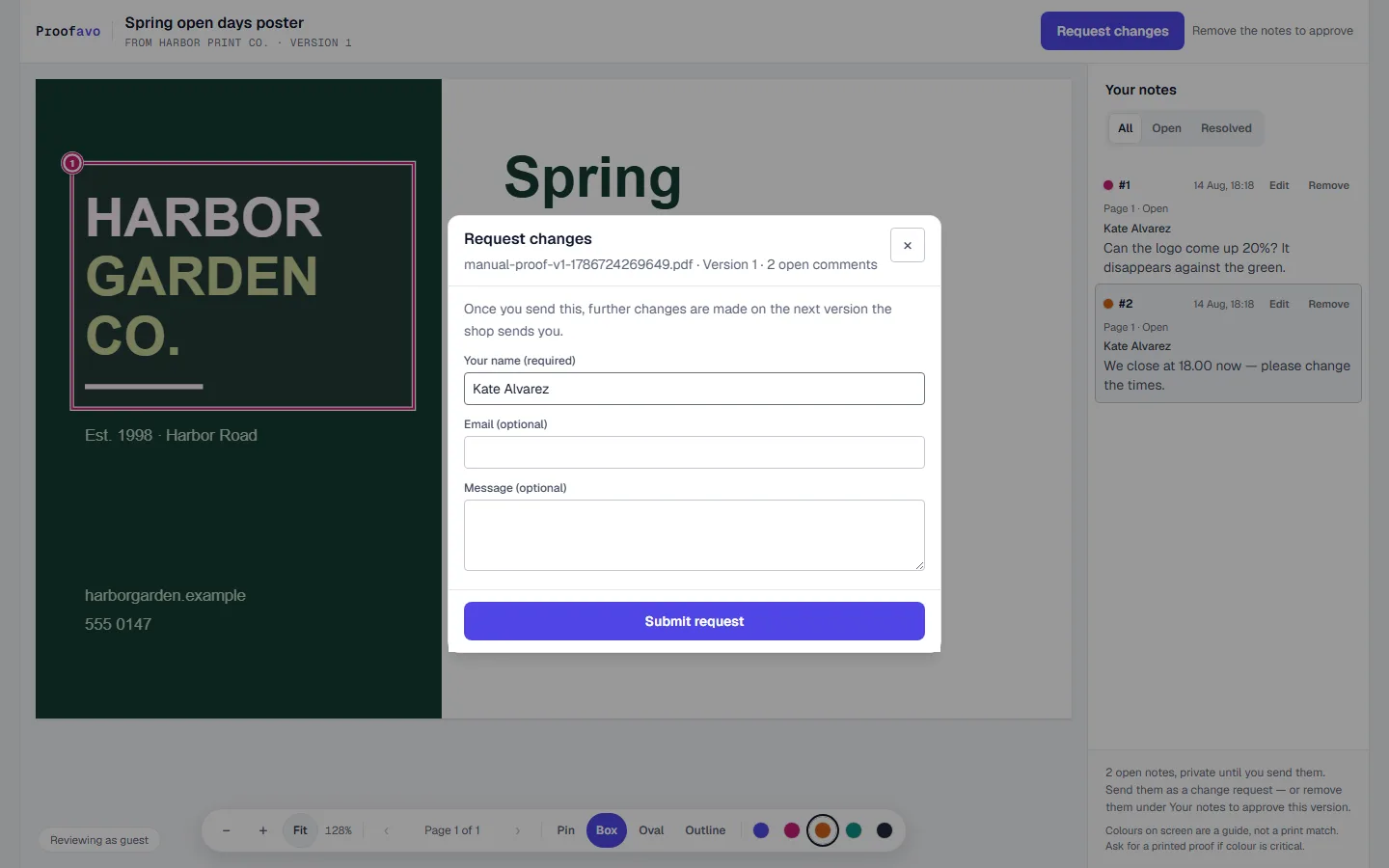
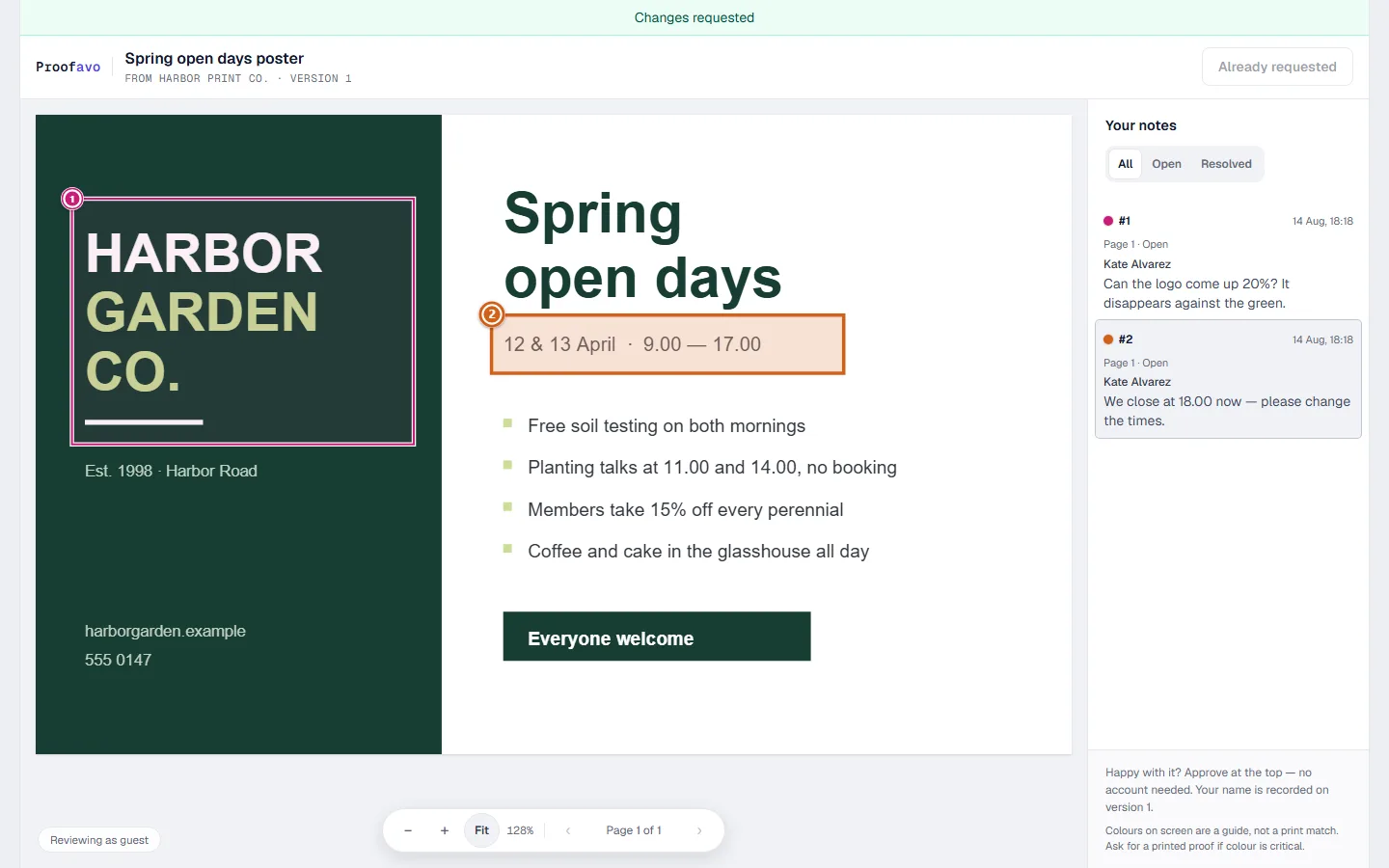
The proof then reads Changes requested and the customer waits for the next version:
Approving
When a version is right, Approve asks for a name, an email (required here, because it goes on the record) and one confirmation tick:
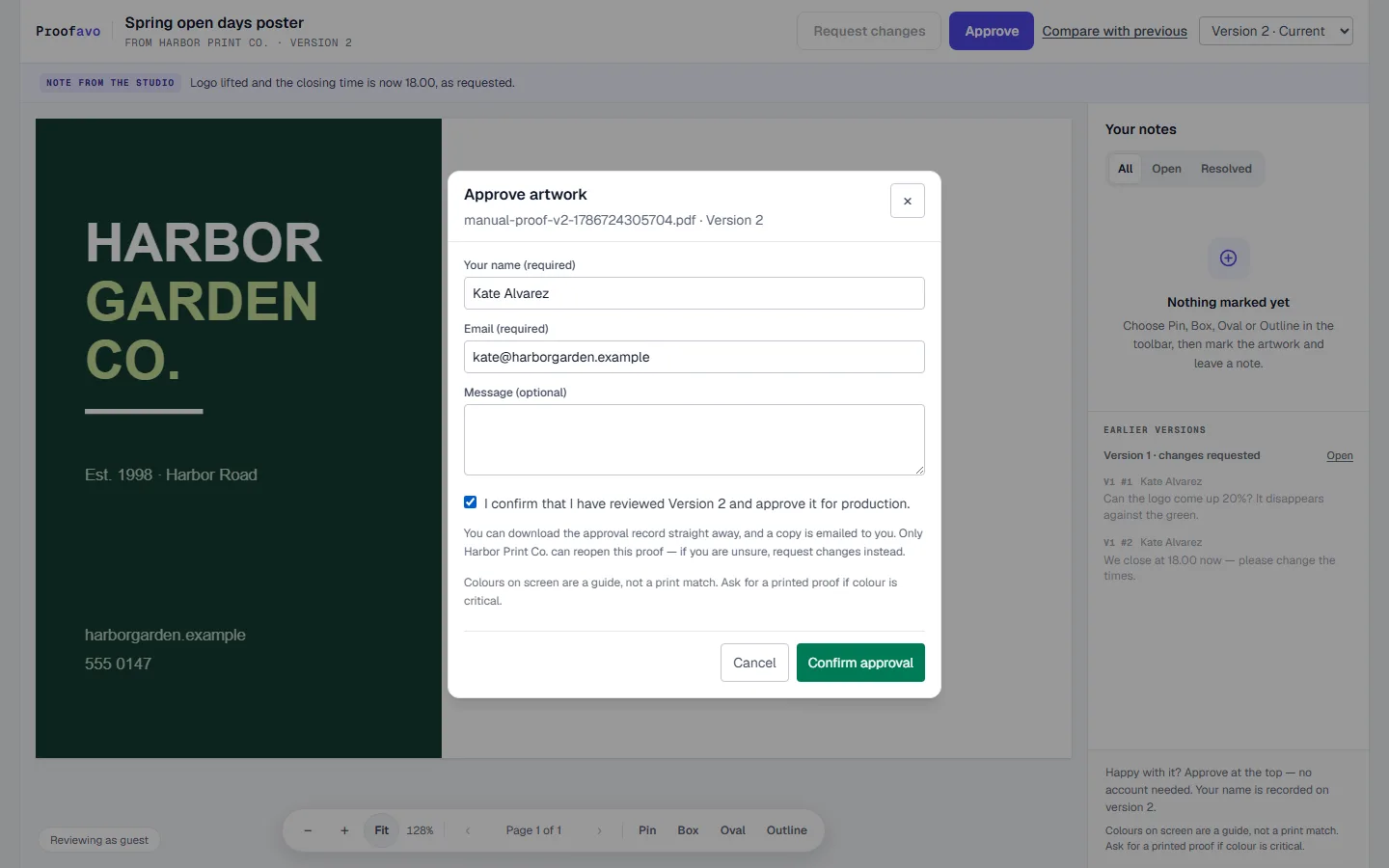
The dialog is deliberately talkative: it names the version being approved, warns if not every page of a multi-page document has been opened, says that on-screen colour is a guide rather than a print match, and states that only the shop can reopen the proof afterwards.
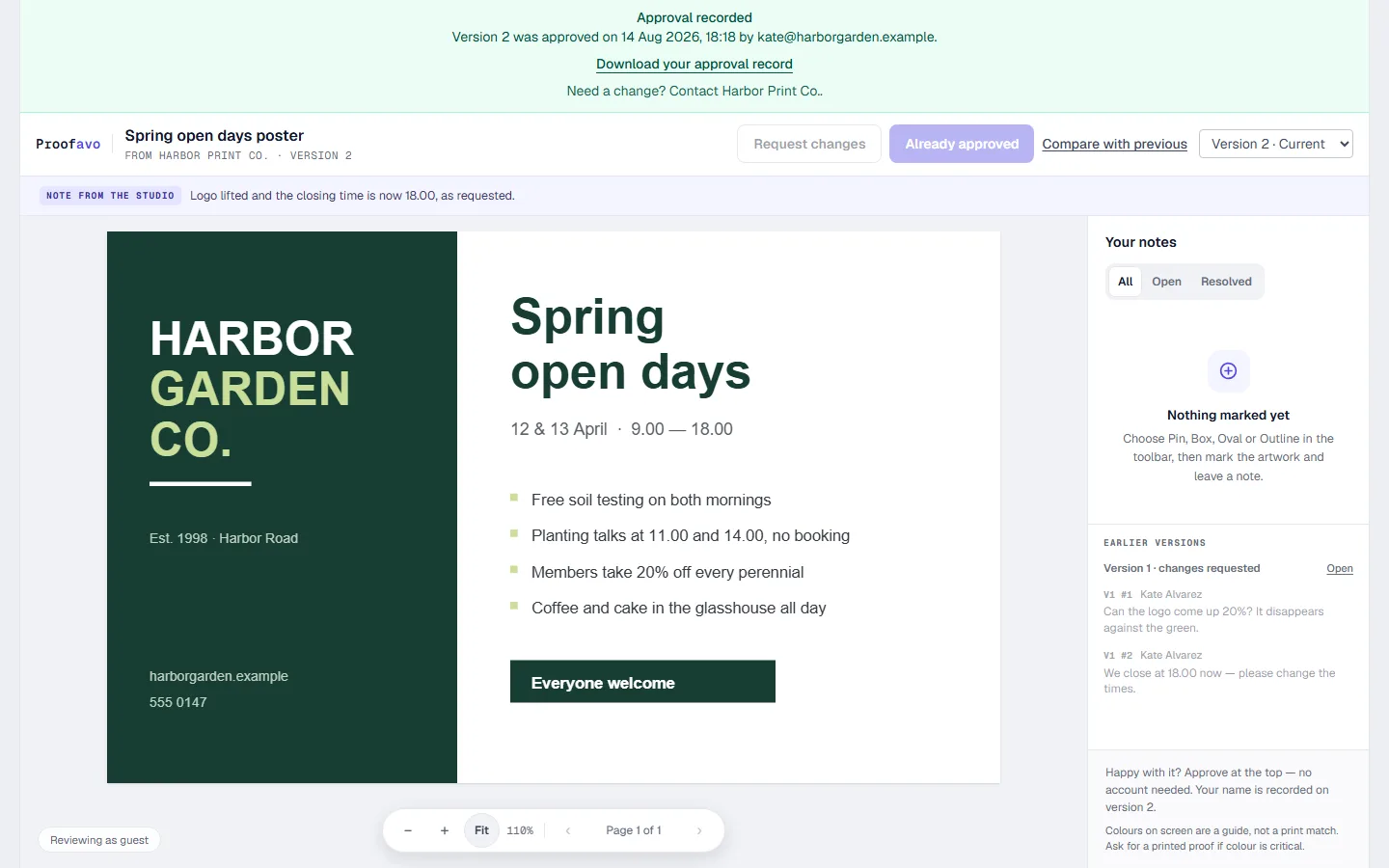
After approval the link keeps working — it shows the approved state, a link to download the approval record, and how to contact the shop:
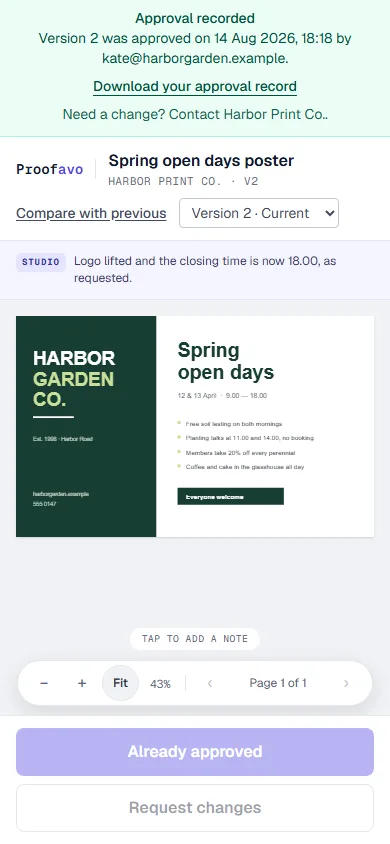
The whole reviewer surface works on a phone: pinch to zoom, tap to add a note, and the same two decisions at the bottom of the screen.
7. Handling a change request
The request lands on the proof:
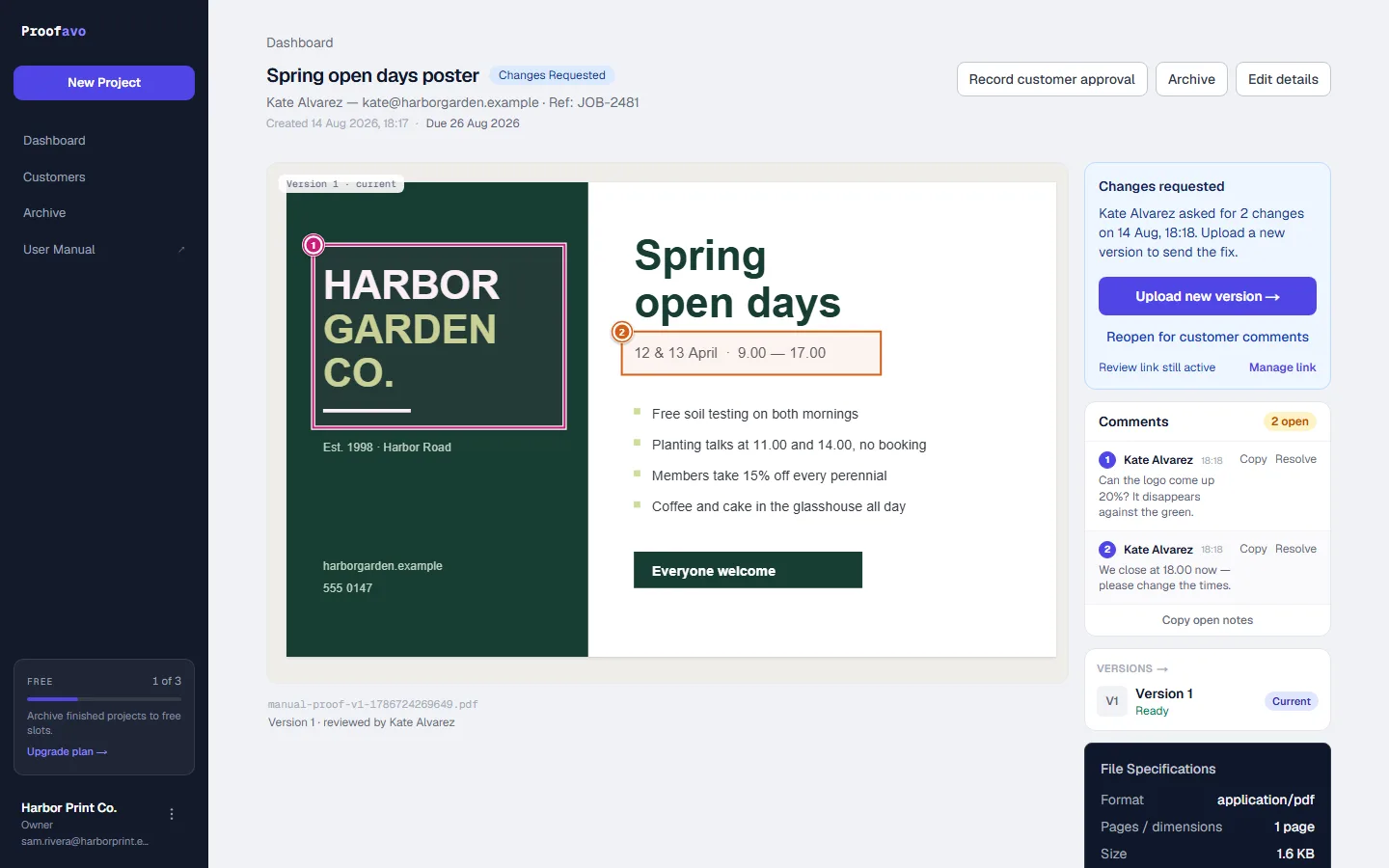
- Changes requested names who asked, when, and how many notes there are.
- Comments lists the notes with their numbers, matching the marks on the artwork. Copy takes one note as text; Copy open notes takes the lot — for pasting into a job ticket, so nobody retypes a measurement.
- Resolve ticks a note off as you deal with it; Reopen puts it back.
- Reopen for customer comments lets the customer add more notes to the version they already reviewed. Close comment window ends that again.
- The review link stays active throughout.
Your own round, before the customer's
Every proof carries an internal round that the customer never sees:
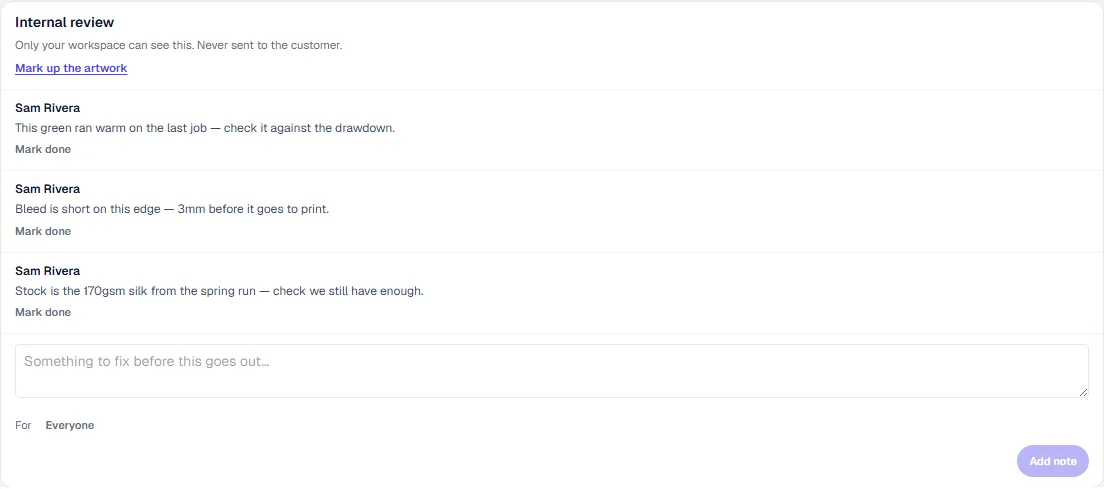
Type a note for the workspace — a plain one goes in the box at the foot of the panel — or Mark up the artwork to draw on the file itself, with the same tools and colours your customer has:
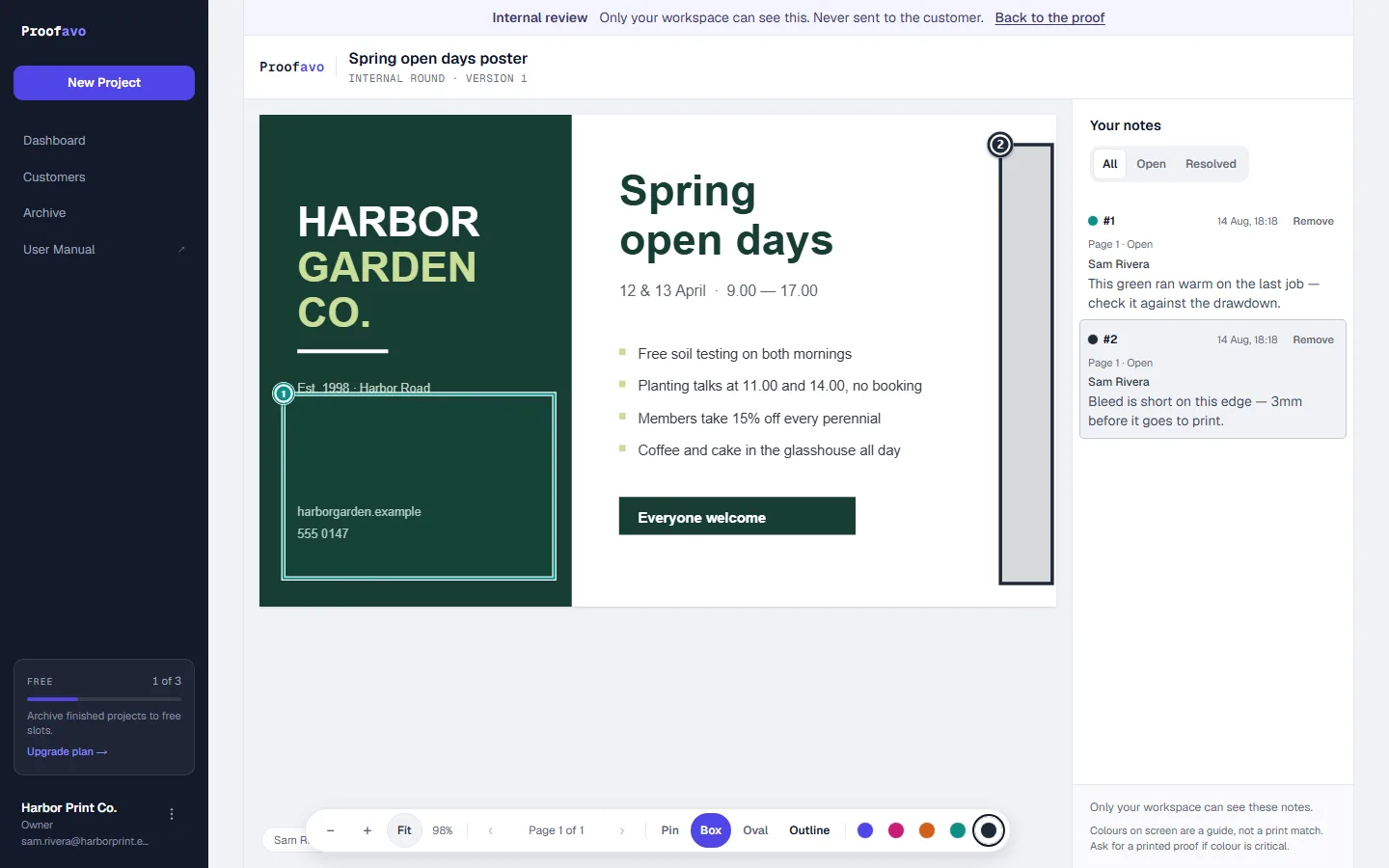
A press check and a bleed check are two different marks on two different parts of the page, which is the whole reason for boxing them.
Internal notes can be addressed to everyone or to a particular colleague, and marked done. They are never sent to the customer, and never appear on the approval record.
Sending the fix
Upload new version takes the revised file. When its preview is ready you get the publish panel again — with the notes carried into their proper places:
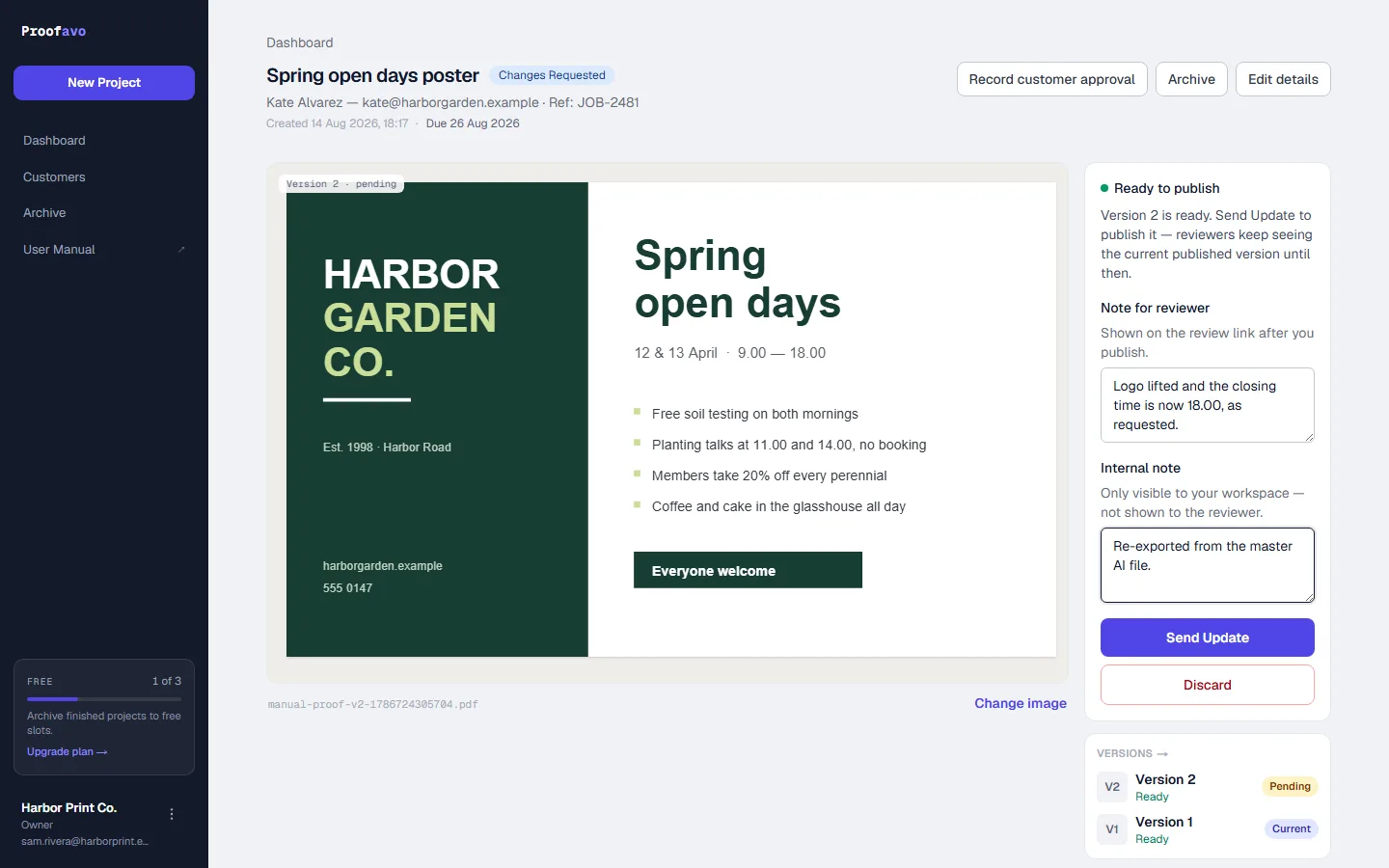
Send Update publishes Version 2. Until you press it, the customer keeps seeing Version 1: an upload is not a delivery.
Your note for reviewer is shown to the customer as a note from the studio at the top of the review link, which is where "logo lifted, closing time now 18.00" belongs:
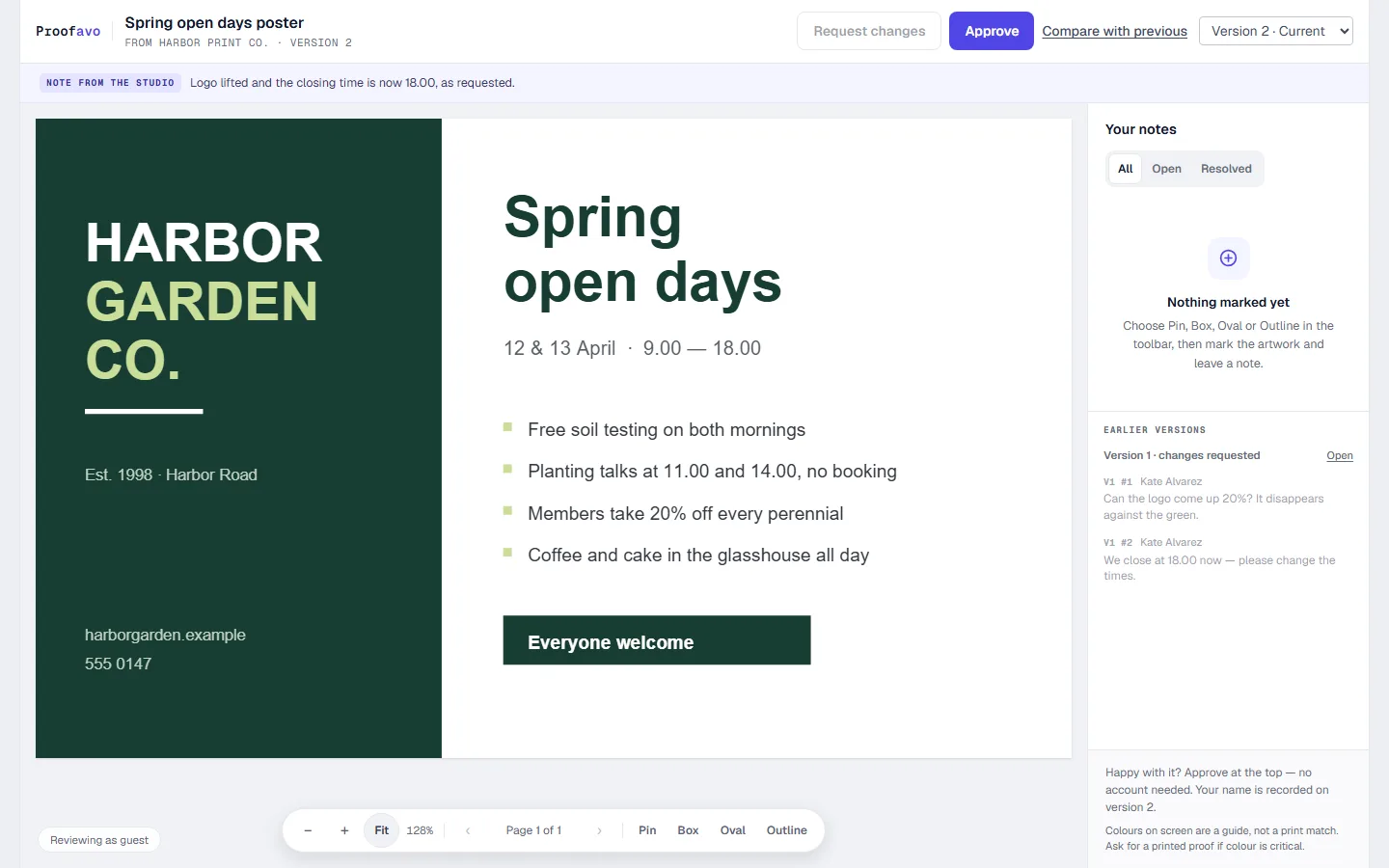
Their earlier notes stay reachable under Earlier versions, so nobody has to remember what round one was about.
8. Versions and comparing them
Versions → on the proof opens the full history:
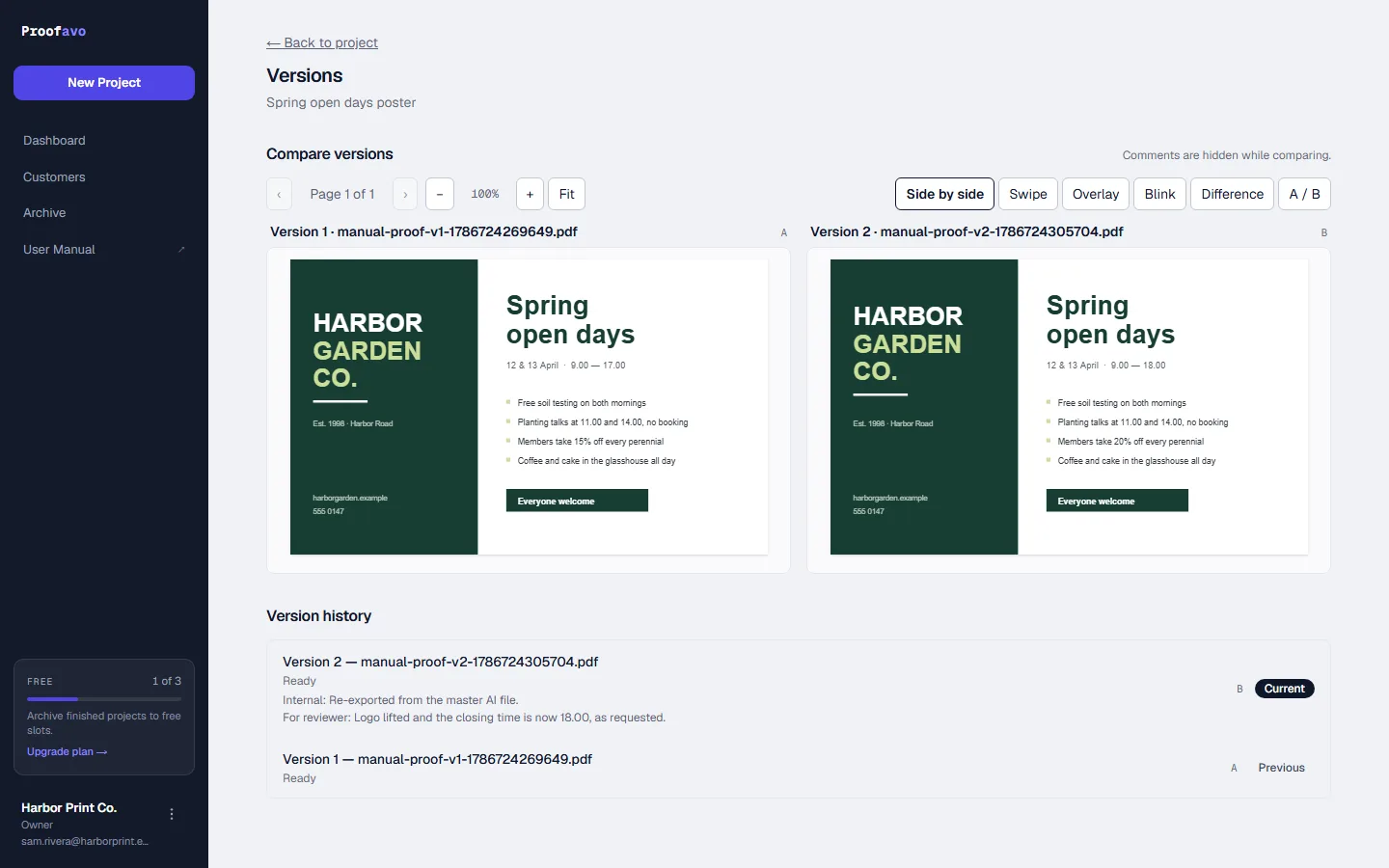
The two most recent versions are loaded side by side. Six ways to look:
| View | Use it for |
|---|---|
| Side by side | The general check — two panes, locked zoom and page |
| Swipe | Dragging a divider across one image over the other |
| Overlay | Fading between the two with an opacity slider |
| Blink | Flipping between them on a timer — the classic way to catch a shift |
| Difference | Highlighting the regions that actually changed |
| A / B | Swapping which version is which |
Below, Version history lists every version with its filename, state, the internal note and the note sent to the reviewer, marking which is Current. The page is deliberately read-only: publishing, discarding and retrying stay on the proof, where their context is.
Your customer gets a smaller version of this: a version selector and Compare with previous on the review link, so they can check the fix against what they commented on.
9. Approval and the approval record
An approved proof is locked:
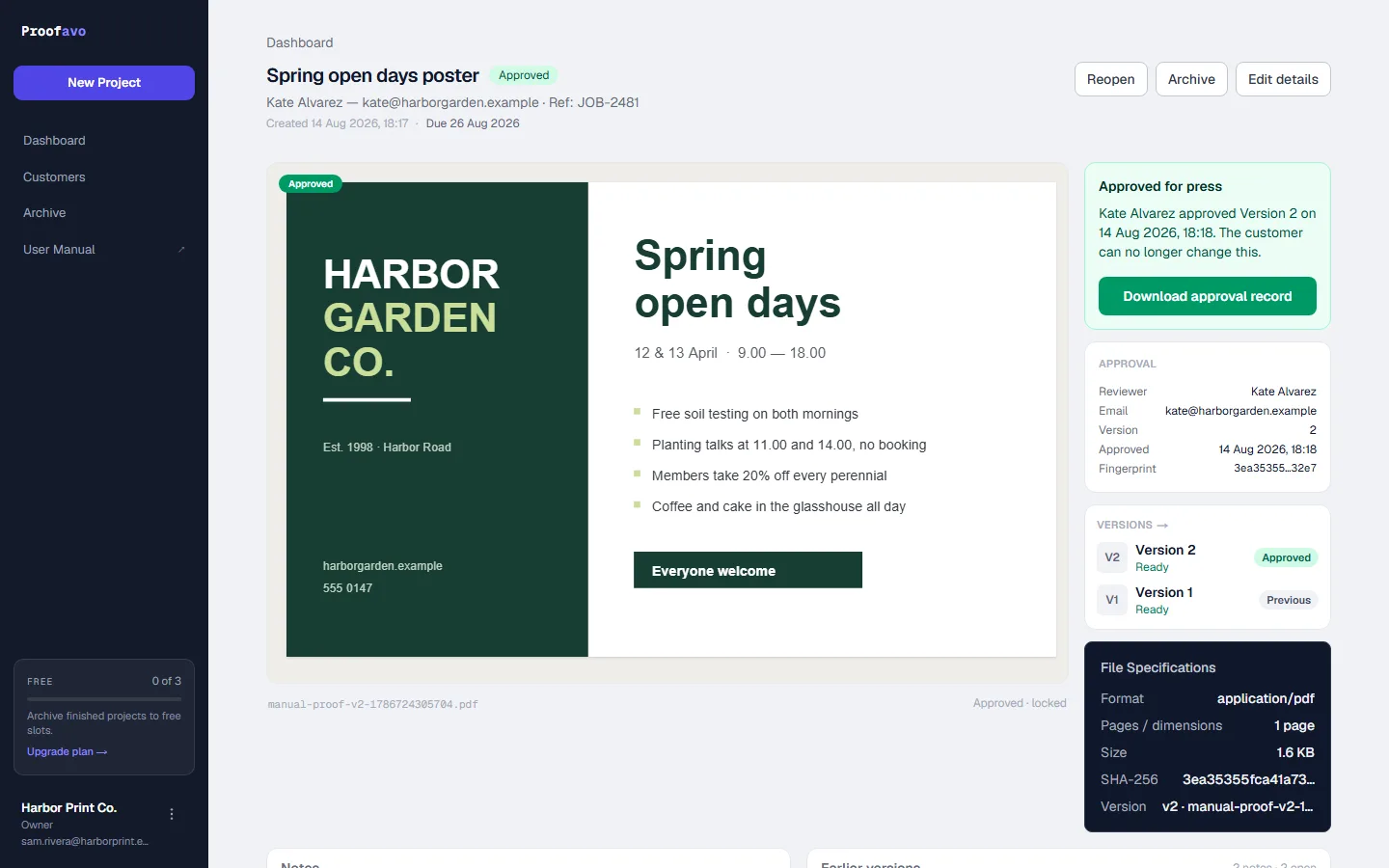
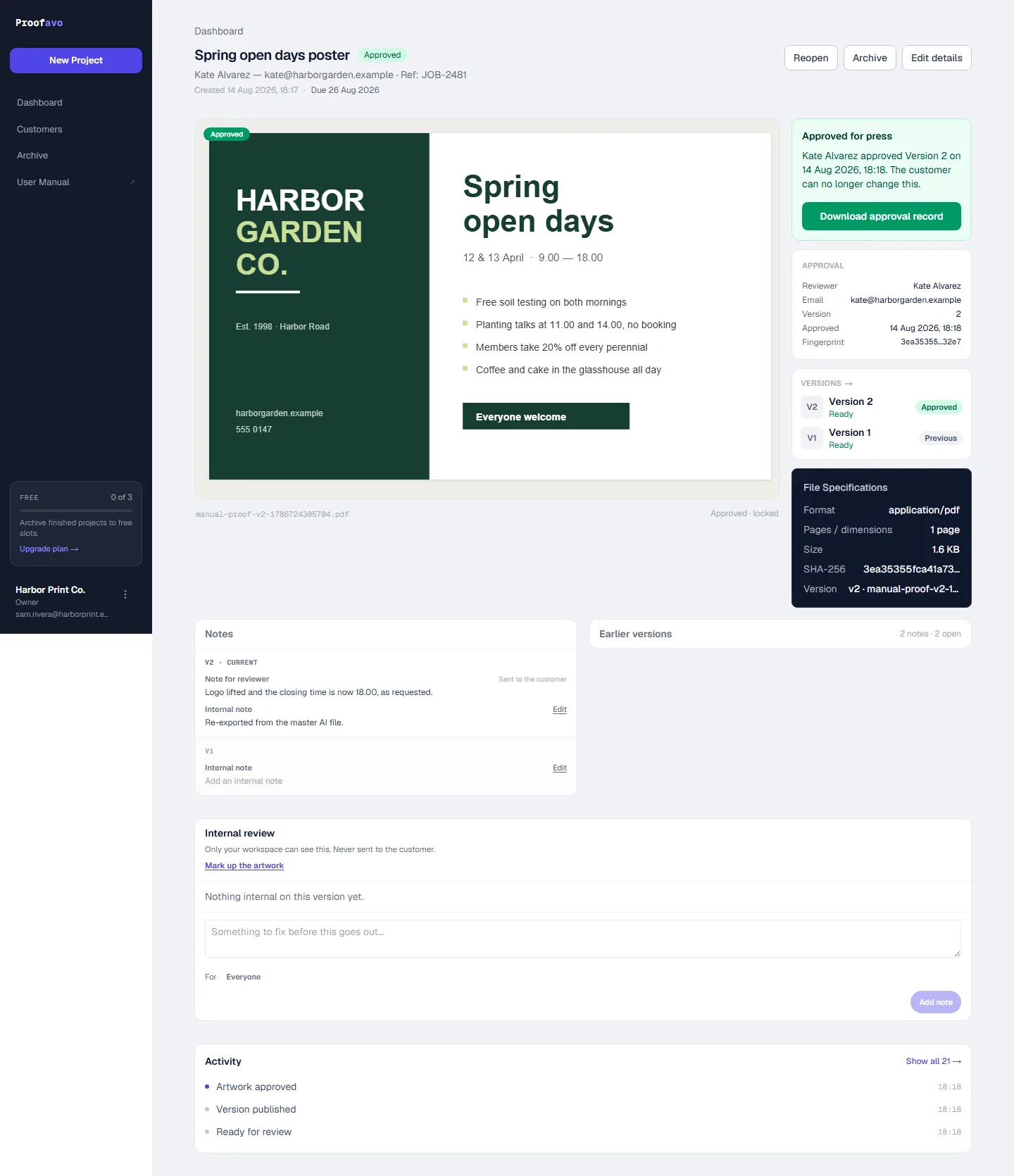
The panel names the approver, their email, the version, the timestamp and the file's fingerprint. The artwork carries an Approved badge and the version list marks which version carries the approval.
Download approval record produces the PDF:
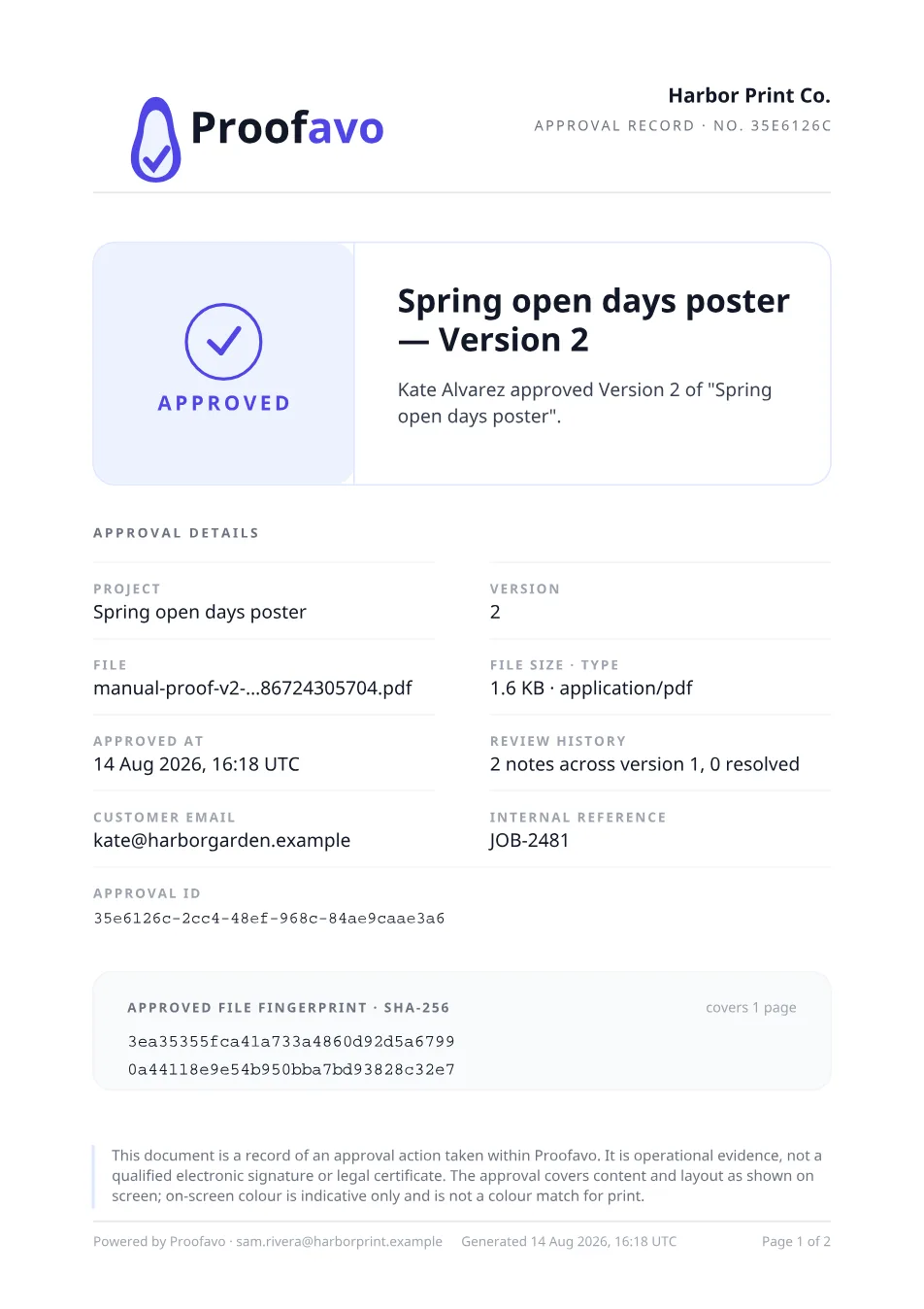
It carries the project name and version, who approved and when (in UTC), the customer email, your internal reference, the review history, an approval id, and the SHA-256 fingerprint of the exact file that was approved — so the file that goes to press can be proven to be the file that was signed off.
Its own footnote is the honest limit, and worth repeating to customers who ask: this is a record of an approval action taken within Proofavo. It is operational evidence, not a qualified electronic signature or a legal certificate, and on-screen colour is not a colour match for print.
On the Professional plan the record carries your own logo and an expanded history, and can include your shop's terms as accepted at approval.
When the customer approves somewhere else
Customers approve by phone, in the shop, or in a one-line email. Record customer approval puts that on the record honestly:
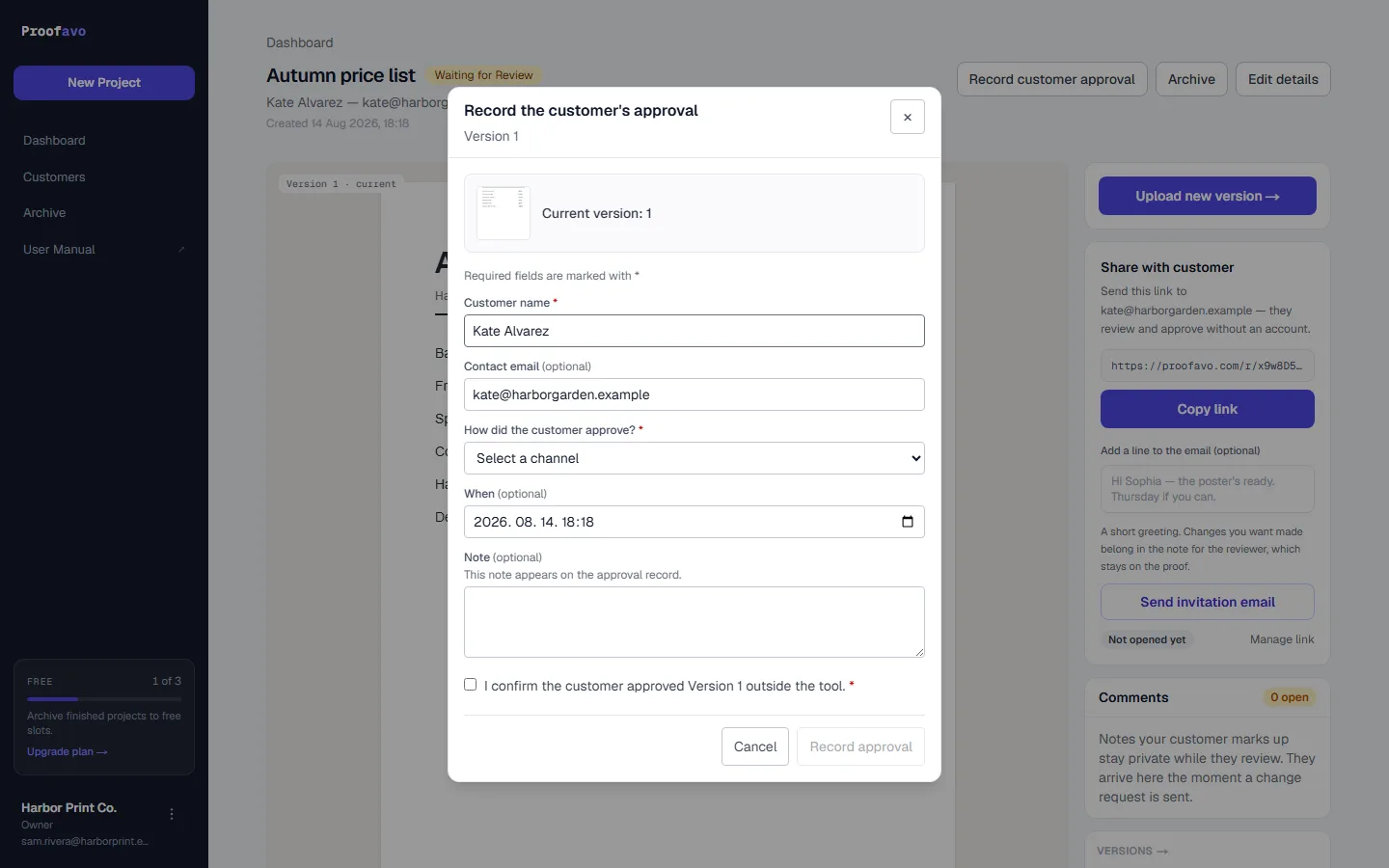
You name the customer, the channel — phone, WhatsApp, email, in person or other — when it happened, an optional note that appears on the record, and tick that it happened. The record then says it was recorded by you on the customer's behalf — never that the customer pressed a button they did not press.
Reopening
Reopen on an approved proof puts it back into circulation: the approval stays in the history as superseded, the review link keeps working, and you can upload a new version and send an update. The approval record for the superseded version still exists and still says what it always said.
10. Archiving and reopening
Finished work does not need to sit on the dashboard, and on a plan with a limit it should not:
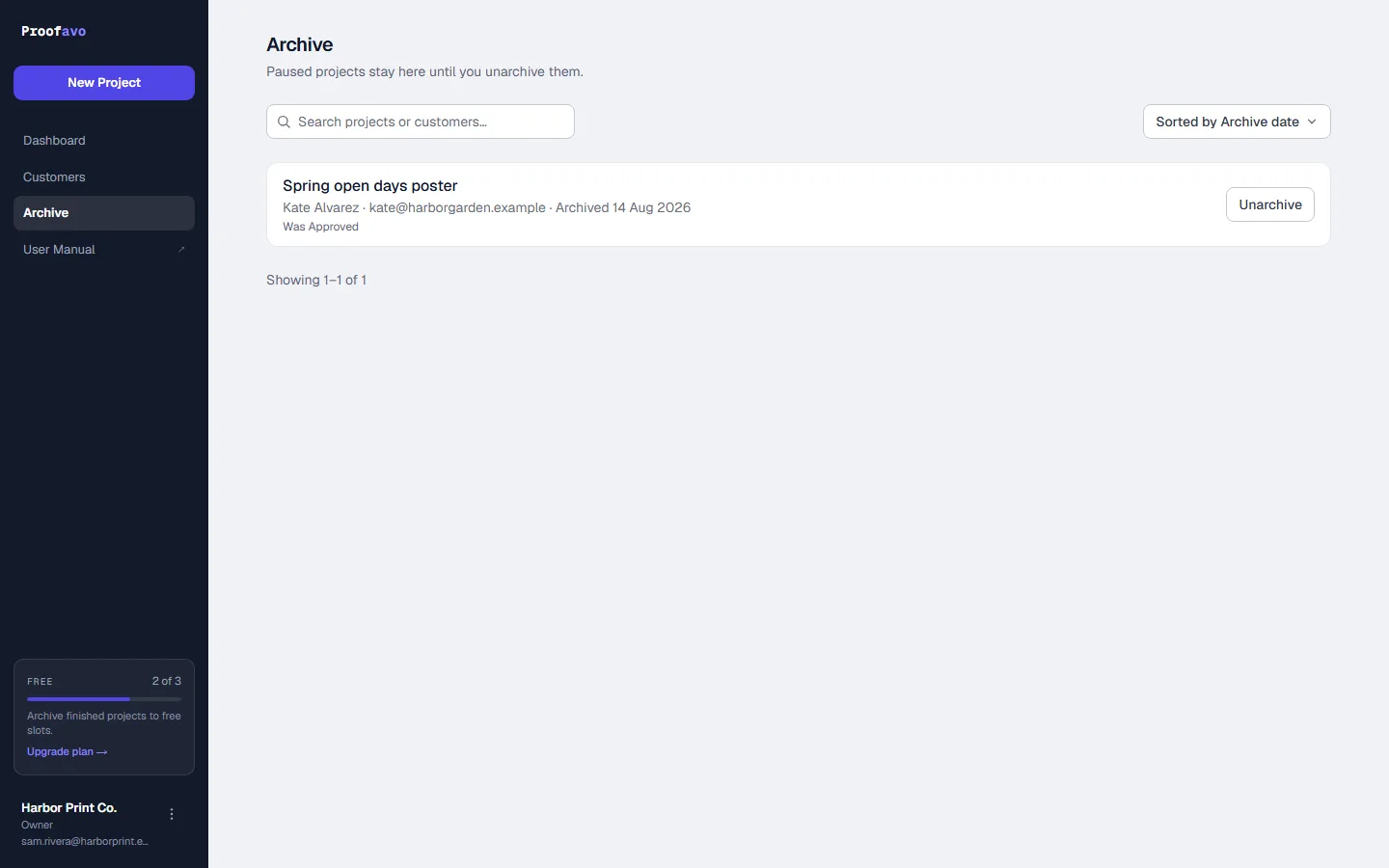
Archive (on the proof or in the row menu) pauses the review link and moves the proof to Archive. Nothing is deleted, and an archived proof does not count against your active-project allowance. Unarchive reactivates the same link — the customer needs nothing re-sent — and is refused only if unarchiving would take you over your limit.
The Archive has the same search and sort as the dashboard, and each row remembers what the proof was before it was put away ("Was Approved").
11. Customers
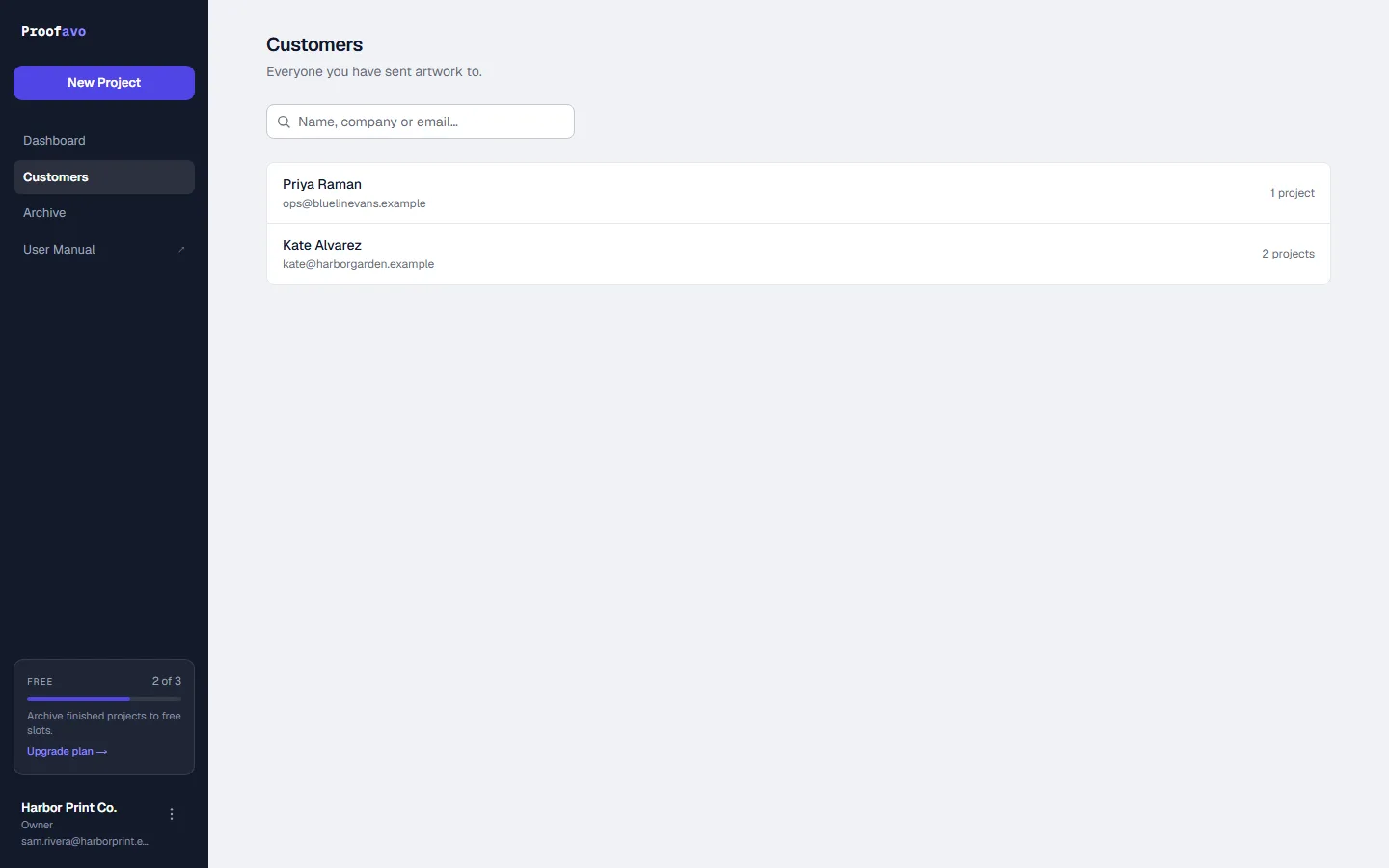
Every project is filed under a customer, created the first time you type their address. The list is searchable and shows how many proofs each one has.
New customer adds one directly, before there is any work for them — a name and an email address, and a company and notes if you have them. They are then waiting in the picker the next time you start a project. If the address already belongs to somebody, the form says so and takes you to them rather than making a second record.
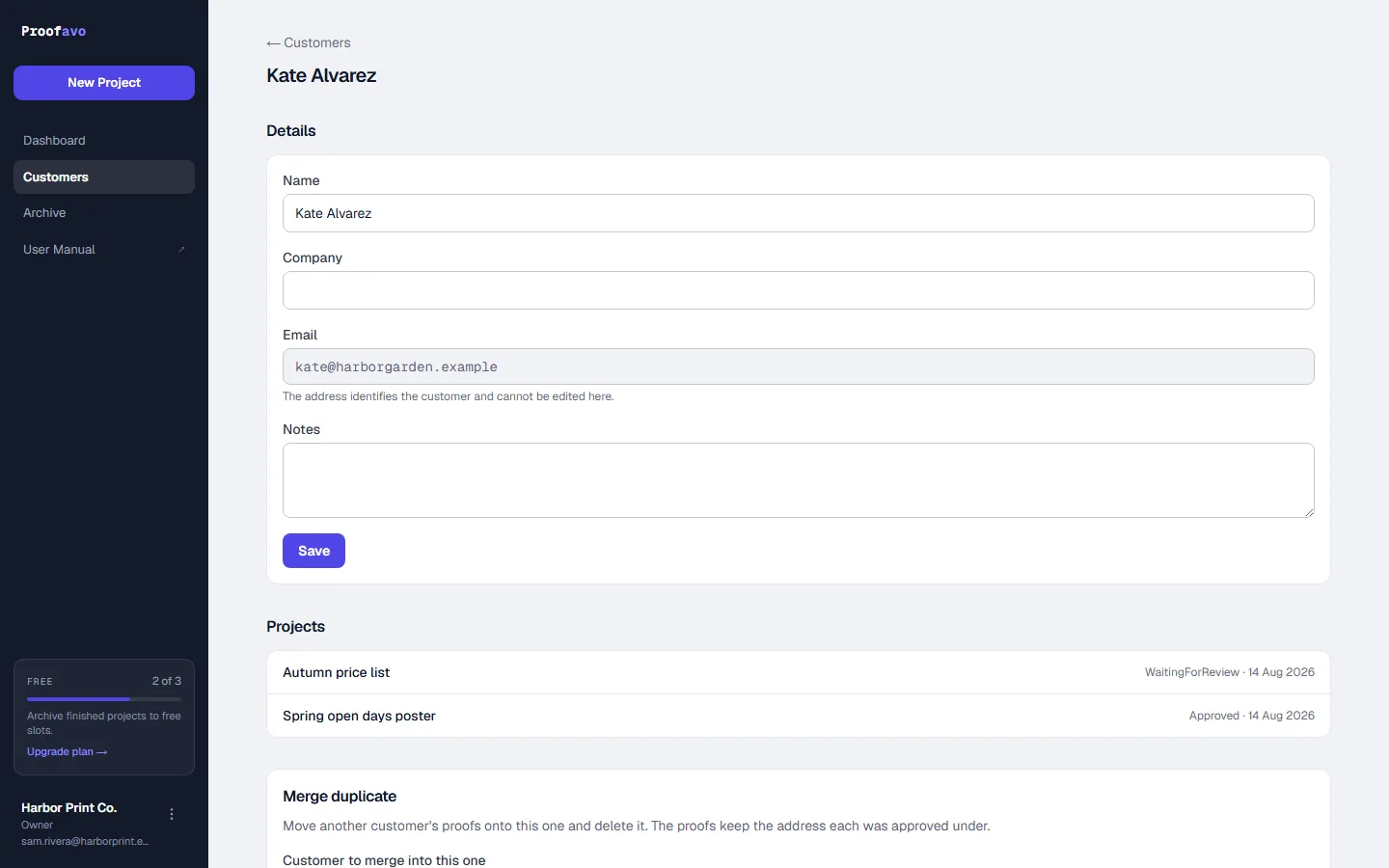
A customer record holds a name, a company, the email address (which identifies them and cannot be edited here), and notes that are internal only — your customer never sees them.
Below it: every project for that customer with its status, and Merge duplicate, for the day the same client turns up under two addresses. Merging moves the proofs onto one record and deletes the other; each proof keeps the address it was actually approved under, because that is what the record says.
This is a customer list, not a CRM. There are no tags, pipelines or campaigns.
12. Settings
Reached from the ⋮ menu beside your name. Five tabs.
You
Everything on this tab is yours alone. Nobody else can change it for you, and changing it changes nothing for anybody else in the shop — which is why it is a tab of its own rather than the top of the next one.
- Your name — how colleagues see you: on a proof's timeline, on the approval record, and beside a connected integration. Leave it empty and your email address is shown instead; the field says so, and the placeholder shows you which address that would be.
- Emails to you — which of the automatic messages reach your inbox.
- How you sign in — the address this account uses, whether it gets in with Google or a password, and the way to change that password.
- Delete your account — the way out, and what it takes with it.
Emails to you
Two boxes, both switched on to begin with:
- A customer requests changes — the one that tells you there is work waiting on a proof.
- A proof is approved — the one that tells you production can start.
Clearing a box stops that message reaching you and leaves your colleagues' inboxes exactly as they were.
Two messages are always sent and are not on the list: a warning that a payment failed, and a notice if our support team opens your workspace. Neither can be switched off — the first is how you find out in time to fix a card, and the second is a promise about your privacy that would be worth nothing if it had an off switch.
Nothing here affects what your customer receives. The review link, the update and the approval confirmation are sent in your shop's name to somebody who is waiting for them; the reminder is the one customer-facing message you control, and it lives on the Workspace tab.
How you sign in
The address on this panel is the one you sign in with, and it is also where everything above is sent. Underneath it, the panel says how you get in — with Google, with a password, or with either.
Change password takes you straight there while you are signed in; you do not have to sign out and ask for a reset link. If you have only ever used Continue with Google the button offers to set a password instead, which adds a second way in and leaves Google working exactly as before.
The address itself cannot be changed here. It is not only how you sign in — it is where your workspace notifications are sent, what an invitation was matched against, and what our delivery records are keyed on. Moving it is something to ask support about rather than something to type. This address is separate from your shop's public email addresses on the Workspace tab; those are the ones your customers see, and you can point them at the same place or somewhere else entirely.
Delete your account
Last on the tab, and it says what will happen before it offers to do it, because that is not the same sentence for everybody.
If you are the only person in your shop, the shop goes with you: every proof, the artwork, the comments, the approvals and the review links your customers hold. The panel counts the proofs so the number is in front of you. Nothing is kept and nothing can be brought back — not by us either.
If anybody else is in the shop, only your account goes. Their proofs, artwork and approvals stay exactly as they are; you simply stop being one of the people who can open them.
Pressing the button asks a second time and makes you type your own email address, the same confirmation as removing a colleague on the People tab. Then you are signed out, and the sign-in page says the account is gone.
One email follows, to the address that was just deleted. There is nothing in it to press — the account it would sign into does not exist — and it exists for the reader who did not do this: deleting an account needs only a signed-in session, so if somebody else was using yours, that message is the only way you would find out. It says to write to support, and it is worth doing even though nothing can be brought back.
Three cases the panel will not do from a button, each written on the screen with what to do instead:
- You are the last Owner and other people are still in the shop. They would be left with proofs they can open and a billing page none of them can reach. Remove them on the People tab — then you are the only one, and the shop goes with you — or write to support to hand the shop over.
- A subscription is still being charged. Deleting the shop here would not stop the payment provider, and would leave us no way to find the subscription again. End it under Billing first.
- You recorded an approval on a customer's behalf in a shop that is staying. That record names you because it is the shop's evidence that the call happened, and we will not rewrite one from a button. Write to support@proofavo.com.
Workspace
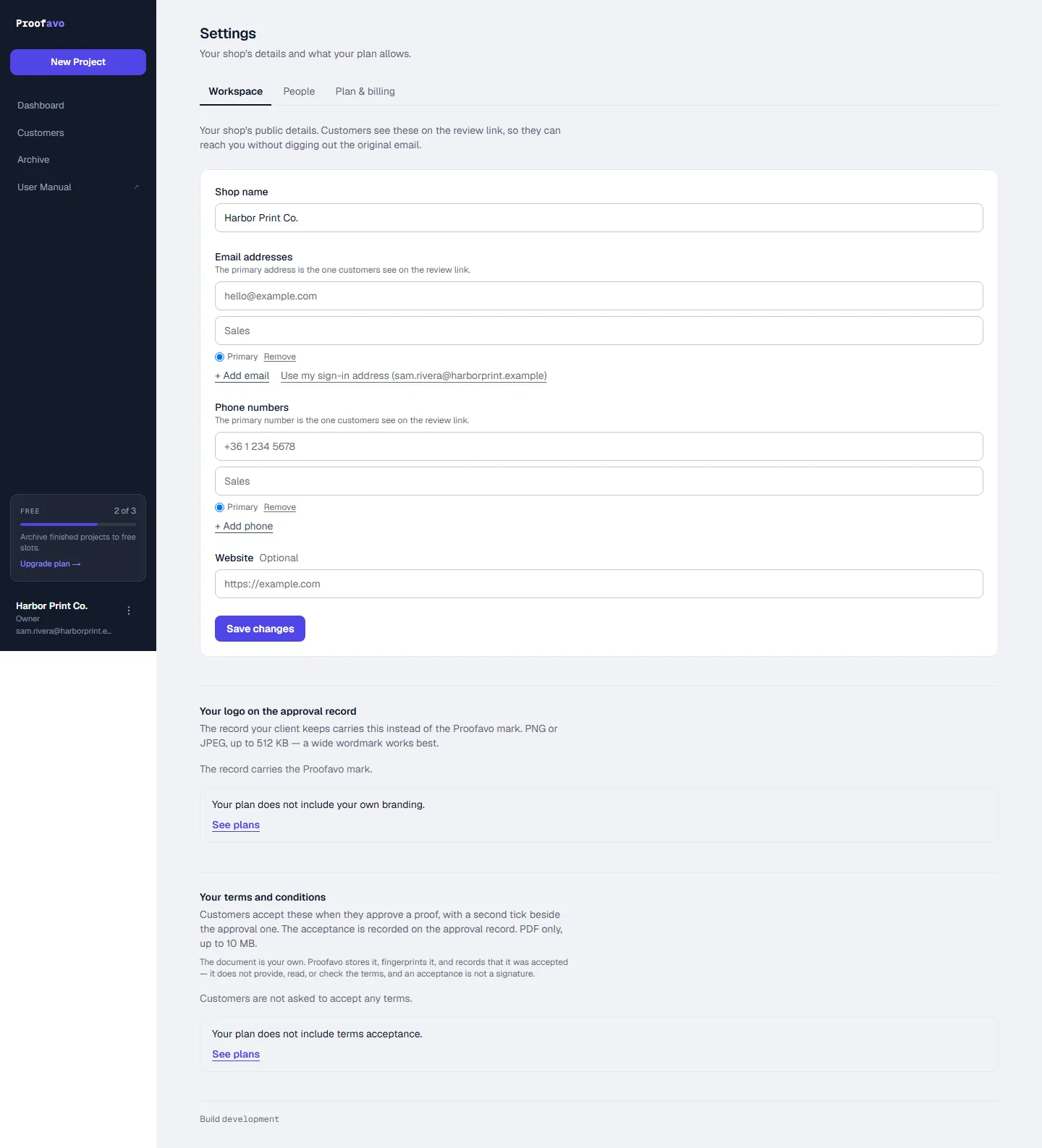
Your shop's public details — the ones your customer sees on the review link so they can reach you without digging out the original email:
- Shop name
- Email addresses, one marked primary (or reuse your sign-in address)
- Phone numbers, one marked primary
- Website
Below the profile, two panels that depend on your plan:
- Your logo on the approval record — PNG or JPEG up to 512 KB; a wide wordmark works best. Without it the record carries the Proofavo mark. (Professional.)
- Your terms and conditions — a PDF up to 10 MB. Upload one and the approve dialog gains a second tick beside the first: "I accept {shop}'s terms and conditions (version N)", with the acceptance — document version, fingerprint, timestamp — recorded on the approval record. Proofavo stores the document, fingerprints it and records that it was accepted; it does not supply, read or check the terms, and an acceptance is not a signature. (Professional.)
Until a terms document is uploaded, customers are not asked to accept anything — the tick simply does not exist.
The review reminder
When you have sent a proof and your customer has not answered, Proofavo sends one reminder saying it is still waiting. Anything they do — opening the link, a comment, a change request, an approval — cancels it, and there is never a second one.
This panel is where you decide whether it happens at all:
- The switch turns reminders off for the whole shop. It is on every plan, including Free. The mail goes out in your name, so stopping it is yours.
- The timing — how many days after you sent the proof, or how many days before its deadline. Between 1 and 14. A proof with no deadline always counts from when you sent it, and a reminder never goes out less than a day after the proof itself. (Starter and above.)
- Your own sentence replaces one line of the email. The link, the reason your customer received it and the note that this is the only reminder stay as they are. Leave it empty for our wording. (Starter and above.)
Under the settings you can see the whole message as your customer will read it, including our wording — and it rewrites itself as you type, so you can decide whether you prefer your own sentence before anything is sent.
You do not have to come here to deal with one particular proof. While a reminder is waiting, the proof's own page shows the date it will go and what it will say, with Change and Remove beside it — and Remove works on every plan. Afterwards the project's activity says either that it was sent, or that it was not and why: "Reminder not sent — the customer had opened the proof."
At the foot of the page is the build you are looking at — the thing support will ask for when there is no error message to quote.
Only an Owner can change any of this.
People
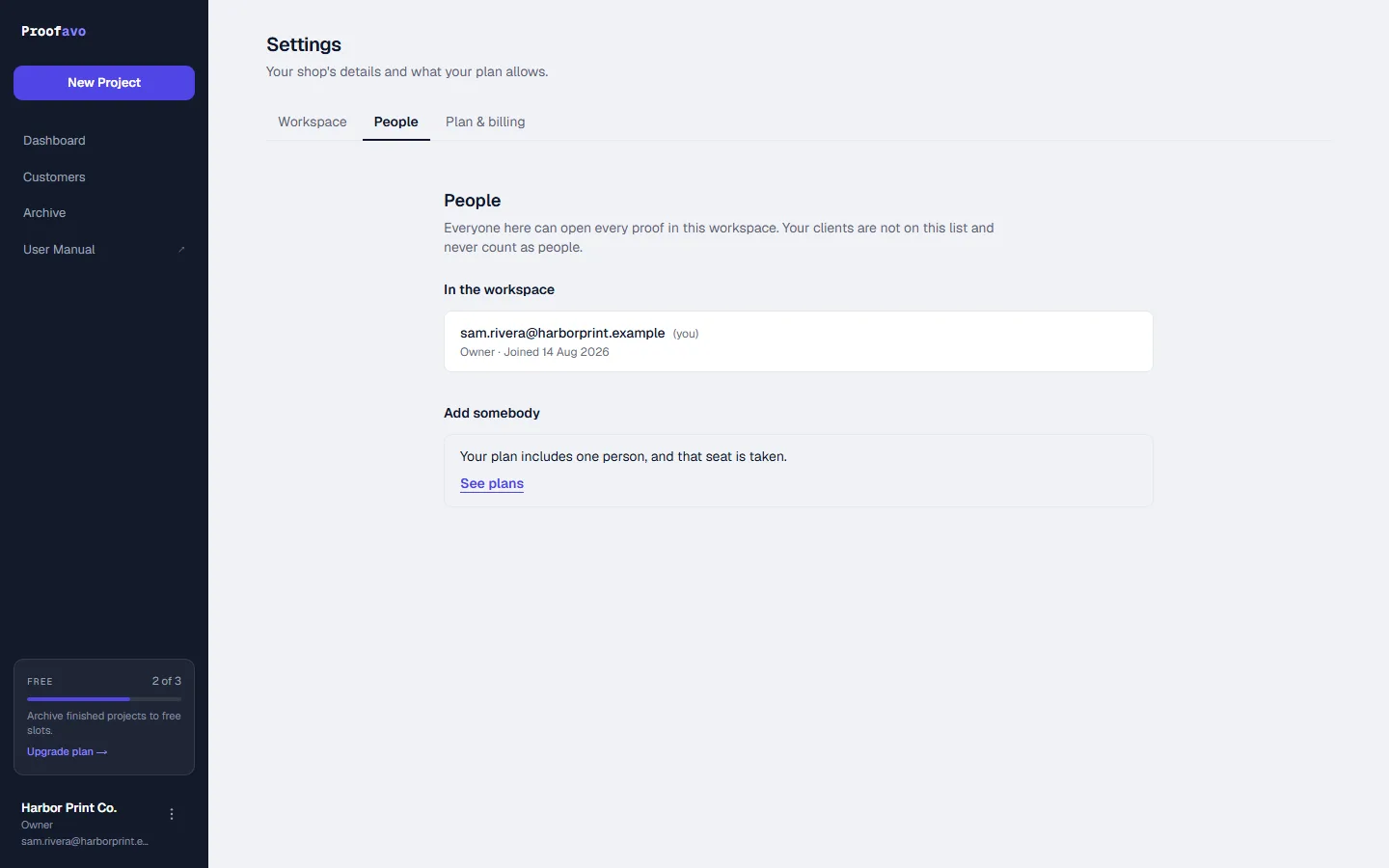
Everyone listed here can open every proof in the workspace. Your clients are not on this list and never count as people.
- Owner — everything, including billing, workspace details and inviting.
- Member — everything about proofs; not billing or workspace settings.
Add somebody takes an email address and a role and sends an invitation. Until it is accepted the person sits under Invited, not yet joined, where the invitation can be cancelled; it is claimed the moment they sign in, and it expires if it is left. People can be removed later, except the last Owner. Only an Owner can add or remove anybody.
On the Free plan there is one seat and it is yours — the invite form is replaced by "Your plan includes one person, and that seat is taken".
Plan & billing
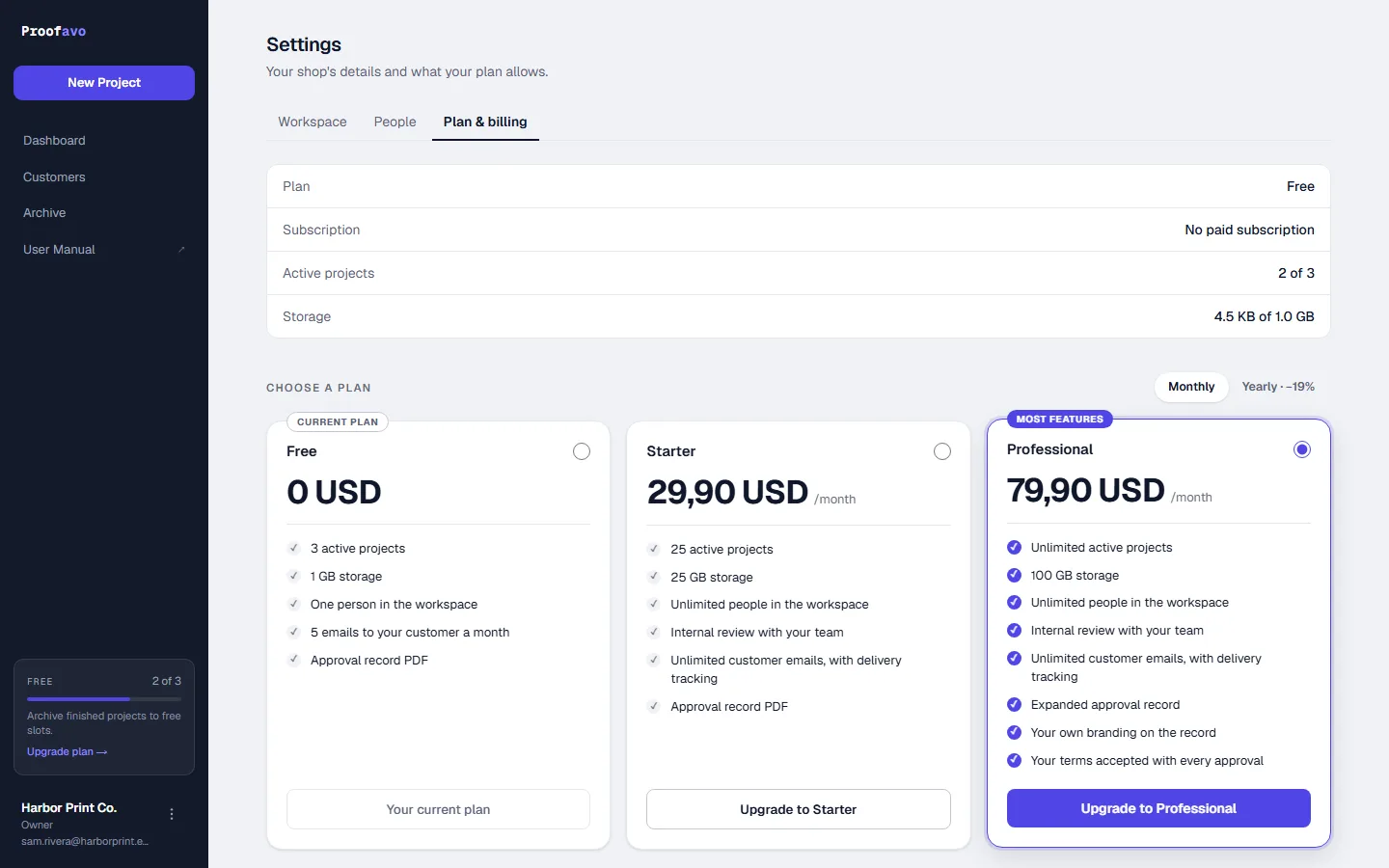
The top block is what you are using right now — plan, subscription state, active projects out of your allowance, storage out of your allowance. Below it the plan cards, monthly or yearly (yearly is about 19% cheaper).
Upgrading opens the payment provider's checkout; an existing subscription gets a billing portal link for cards, invoices and cancellation. Payments are handled by Dodo Payments as merchant of record — card details never touch Proofavo.
Billing is Owner-only: a Member opening this tab is told so and sees nothing about what the workspace pays. Members still meet the plan's limits, in the neutral wording on the screens where the limits bite.
Integrations
Proofavo can put a change request into the tool your shop already schedules work in, so nobody has to retype it. One integration in this version: Asana.
What it does. When a customer requests changes, a task appears in the Asana project you chose:
Changes requested — Ashcroft Dental (v2) A customer requested changes on version 2. Requested 2026-08-20 14:20 UTC. Review and upload the revision in Proofavo: (link)
If the proof has a deadline, the task gets it as its due date — so the work shows up in your "due this week" view in Asana instead of sitting undated. A proof with no deadline makes a task with no due date. Changing the deadline in Proofavo afterwards does not move it on a task that already exists.
When the round ends and the customer approves, that task completes itself. A second change request later opens a new task.
What it never sends. The task carries the proof's name, its version, what happened and when, and a link back to Proofavo that requires a sign-in. It does not carry the review link, your customer's name or email address, anything they wrote in a comment, or the artwork. Nothing in Asana can reach back into Proofavo — the connection only goes one way.
Connecting. The workspace Owner presses Connect Asana, signs in at Asana and approves the access, then chooses the destination project. Until a destination is chosen, nothing is sent. Everyone in the workspace can see whether Asana is connected and where tasks go; only the Owner can change it.
If syncing pauses. If Asana stops accepting the connection — the app was removed there, or a password changed — the card says syncing is paused and offers Reconnect. Nothing is lost while it is paused: the change request, the email to your team and the dashboard are unaffected, and Proofavo never depends on Asana being reachable.
Disconnecting. One button, with a confirmation. Tasks already in your Asana stay exactly as they are — they are yours. New change requests stop being sent.
Available on every plan.
Slack
The same idea, in the place your team already talks. When a customer requests changes, a message appears in the channel you chose:
Changes requested — Ashcroft Dental (v2) Requested 2026-08-23 14:20 UTC · due 2026-09-14 Review and upload the revision
When they approve, the message gets a ✅ and rewrites itself to say Approved — no changes outstanding. It does not post a second message; a resolution does not deserve a notification to everyone in the channel.
Public channels only, and Proofavo does not need to be invited to one — it can post to any public channel in your workspace, and it adds itself to the channel you choose the first time it ticks a message. If you want a private channel, tell us; it is not built yet on purpose.
What it never sends is the same list as Asana's, and it matters more here: channels can have guests, and Slack Connect can put people from other companies in them — including your own client. The message never carries the review link, your customer's name or email, or anything they wrote.
Connecting, pausing, reconnecting and disconnecting all work exactly as they do for Asana, on the same page. You can run both at once.
Available on every plan.
13. Plans and limits
| Free | Starter | Professional | |
|---|---|---|---|
| Price | 0 | 29,90 USD / month | 79,90 USD / month |
| Active projects | 3 | 25 | Unlimited |
| Storage | 1 GB | 25 GB | 100 GB |
| People in the workspace | 1 | Unlimited | Unlimited |
| Customer emails from Proofavo | 5 a month | Unlimited, with delivery tracking | Unlimited, with delivery tracking |
| Questions to the help assistant | — (this manual) | Unlimited | Unlimited |
| Internal review with your team | — | ✓ | ✓ |
| Approval record PDF | ✓ | ✓ | Expanded |
| Your branding on the record | — | — | ✓ |
| Your terms accepted at approval | — | — | ✓ |
Two things never depend on the plan, because they are the integrity of the product rather than a feature of it: approval is always against a specific version, and the approval record always carries the approved file's fingerprint.
Only Draft, Ready to share / Waiting for Review and Changes Requested count as active. Approved and archived proofs do not — which is why "archive finished projects to free slots" is the advice under the plan meter.
14. Troubleshooting
There is a faster way to ask
Ask for help sits in the bottom corner of every page once you are signed in, on the Starter and Professional plans. On Free it is this manual that answers — the assistant reads from the same text, so nothing here is missing from it; what it adds is your own workspace's state. It answers from this manual and from your own workspace: it can see your plan, your proofs, which version an approval names, whether a review link is active or was revoked, and whether an invitation was delivered.
That last part is what makes it worth opening rather than reading on. "Why is the Ashcroft job still waiting?" is a question about this manual only in the loosest sense; the answer is in your own data, and the assistant reads it.
It is not a person. When it does not know, it says so and offers to hand the conversation to us at support@proofavo.com, with what you already typed attached, so you are not starting again. Do that whenever the answer matters more than the wait.
Two things it will not do: it never changes anything — it explains how you do it — and it never sees your artwork, your review links, or your customers' email addresses. What it does read, and how long a conversation is kept, is in the Privacy Policy.
The rest of this chapter is the same answers, written down.
The customer says the link does not work. Check the share panel. A link that was regenerated or revoked stops working immediately, and archiving a proof pauses it. Unarchive, or send the current link again.
The customer opened it but nothing has happened. Notes are private until they are sent. They may be mid-review with several notes placed and no change request submitted yet — a band over their notes says so, and most browsers add a warning on the way out, but both can be ignored and the second one does not always appear. Opened · no decision under Needs your attention on the dashboard is the same fact, with how long it has been that way.
I uploaded a new file and the customer still sees the old one. An upload is not a delivery. Press Start review / Send Update on the publish panel — until then the pending version is yours alone.
The preview failed. The card says why, in words rather than codes: the PDF is corrupt or password-protected, it has more than 100 pages, the image could not be decoded or its dimensions are outside the safe limits, or processing timed out. Use Retry anyway, or Change file and upload a re-exported copy. A failed version never becomes current, so the customer keeps seeing the last good one.
I cannot start a new project. You are at your active-project limit — the banner names the figure, and the plan meter in the rail shows it too. Archive something finished, or upgrade.
The invitation email was not delivered. The share panel shows the delivery state. A hard bounce suppresses that address until it is fixed — copy the link and send it yourself in the meantime.
Approve is not available on my customer's screen. Either they have open notes (the line in the button's place says Send the notes, or remove them), or the proof is already approved, or a change request is outstanding and the next version has not been sent yet.
I approved the wrong version / the customer changed their mind. Reopen the proof. The old approval stays in the history as superseded and its record still exists; upload a new version and send an update.
Colour looks wrong on screen. It will. Proofavo says so in the approve dialog: on-screen colour is indicative and is not a print match. Send a printed proof when colour is critical.
15. Reference
Status reference
| Status | Customer can view | Customer can comment | Customer can decide | Counts against your plan |
|---|---|---|---|---|
| Draft | No | No | No | Yes |
| Ready to share | Yes, once they have the link | Yes | Yes | Yes |
| Waiting for Review | Yes | Yes | Yes | Yes |
| Changes Requested | Yes | Only if you reopen the comment window | No, until the next version | Yes |
| Approved | Yes | No | No | No |
| Archived | No — the link is paused | No | No | No |
What gets written to the activity log
Project created · Artwork uploaded · Preview generated / failed / retried · Version published · Pending version discarded · Review link created / replaced · Review requested · Comment added / resolved / reopened · Changes requested · Artwork approved · Approval superseded — reopened for changes · Review comments reopened / closed · Project archived.
The log is on every proof, newest first, and it is the answer to "when did we send that?". Scroll a finished proof to the bottom and it is all there — the notes on each version, the earlier rounds, and the log:
Keeping this manual current
The screenshots are generated, not collected by hand:
node scripts/capture-manual-shots.mjs http://localhost:3210
It needs a local Supabase (npm run db:start) and a dev server on the port you
pass. It provisions its own workspace (sam.rivera@harborprint.example, Harbor
Print Co.), so nothing else in the database is touched, and writes every image
in docs/15-user-manual/assets/.
MANUAL_ACCOUNT_EMAIL=you@shop.example node scripts/capture-manual-shots.mjs http://localhost:3210
Use a fresh address for a pristine set: a re-run archives what the last one left behind — the Free plan has three active slots and the run needs all three — so the Archive screenshot would otherwise show the previous run's proofs underneath this one's.
The markings are drawn where they belong: MARKS in the script holds each box
as fractions of the artwork, so a mark stays on the logo or on the opening times
rather than landing near them. When the interface changes, re-run it and fix the
words around the pictures.
Where this is published
The manual is a page on the product's own site at /manual — public, so a
shop can send a customer straight to a chapter
(…/manual#6-what-your-customer-sees) instead of retyping it. Inside the
product it is the User Manual row in the rail, under Archive, and on a phone it
is in the account menu; both open it in a tab of its own.
The page is generated from this file:
npm run build:manual-content
That writes src/content/manual/generated.ts and the screenshots as WebP into
public/manual/. A test fails if the two have drifted, so the page cannot
quietly fall behind the markdown.
Handing it to somebody
A page is not always what is wanted — a customer with no internet at the press, a colleague who wants it in their inbox. One command turns this file into a single file:
npm run build:manual
docs/15-user-manual/UserManual.html is then a single self-contained file —
every screenshot inlined as WebP, both typefaces inlined, no folder of assets
beside it — which can be emailed, put on a share, or opened from a USB stick. It
is not committed: it is rebuilt from the Markdown and the PNGs, which are the
source of truth. Add --fragment for a version without the surrounding
document, for pasting into a host that supplies its own.
Related documents
docs/01-product/CoreWorkflow.md— the workflow this manual walks throughdocs/03-domain/StateMachine.md— the states and the rules that move between themdocs/09-frontend/ReviewerInterface.md— the reviewer surface in detaildocs/09-frontend/InternalApplicationInterface.md— the shop's screens in detaildocs/06-backend/ReviewWorkflowService.md— where the business rules live