
Annotate an image online — free, no sign-up, no watermark
Mark up a photo, poster or design in the browser and download it. Nothing is uploaded unless you choose to share it.
Drop a file here
PNG, JPG or WebP, up to 25 MB
You can also press Ctrl+V to paste a screenshot.
Your file never leaves your browser unless you click Share.
Open an image above, draw on it, and download the result. There is no account to make, nothing is watermarked, and — unless you press Share — the file never leaves your browser.
The editor does its work on your own machine, which is why it starts instantly and why a picture you would not email to a stranger is safe to open here.
If you have nothing to hand, load the sample and try the tools on that.
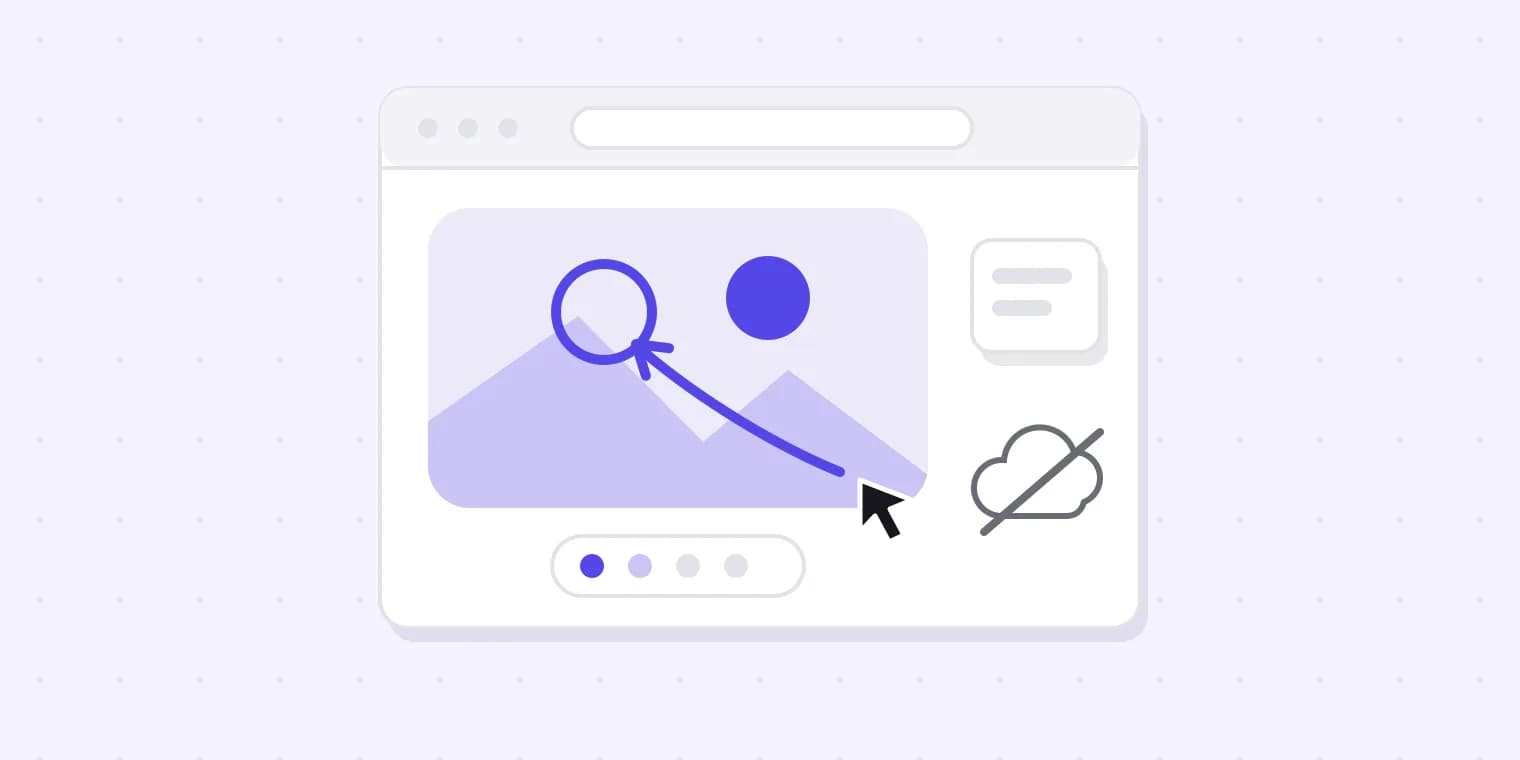
What you can draw
Arrow — point at the thing you mean. The head follows the direction you drag.
Box and ellipse — circle a region without covering it.
Pen — freehand, for anything a shape will not say.
Text — type into a box you draw. It wraps to the box.
Highlight — a translucent band, so the detail underneath is still readable.
Numbered note — drop a pin, write a sentence, and it is numbered 1, 2, 3 in the order you place them. This is the one to use when your marks need explaining rather than pointing at.
Blur — pixelate a face, an address or an account number. It replaces the pixels rather than covering them, so what you hid is genuinely gone from the file you download.
Every mark can be selected, moved, nudged with the arrow keys and deleted. Undo is Ctrl+Z, and it goes back a hundred steps.
Getting an image in
Four ways, whichever is nearest:
- Drag and drop a file onto the page.
- Choose a file through the picker.
- Paste with Ctrl+V — useful straight after a screenshot.
- Load the sample, if you are just looking.
PNG, JPG and WebP are accepted, up to 25 MB. Working on a PDF instead? Use annotate a PDF, which writes real PDF annotations rather than flattening your document.
Getting it back out
Download saves a PNG at the image's own resolution — a 4000-pixel poster comes back 4000 pixels, not a screen-sized copy of one. How large 4000 pixels can actually be printed is a different question, and the image resolution checker answers it. Copy puts it on the clipboard, which is usually what you want when the next step is pasting it into a chat window or a ticket.
No watermark, and no upsell drawn into the corner of your own picture.
Screenshots
A screenshot is the image most people arrive here holding, and it is the one worth being careful with — it is the file you take without thinking about what is in the corner of it.
- Screenshot something (Win+Shift+S on Windows, Cmd+Shift+4 on a Mac).
- Paste it here with Ctrl+V.
- Arrow at the problem, blur anything private, press Copy.
- Paste it into Slack, a ticket, or an email.
Copy rather than Download is the point of that last step: a marked-up screenshot almost never ends in a downloads folder, it ends in a message box.
Worth blurring before you send
- Names and email addresses in a header
- Customer records in a table
- Account numbers
- API keys in a terminal
- The browser tabs along the top
- Whatever notification arrived at the worst possible moment
The blur destroys those pixels rather than covering them, so there is no shape for anyone to drag aside afterwards.
When marking up an image is not enough
Annotating is one person writing on one copy. That is fine for a bug report and it is where artwork approval quietly goes wrong: send a design to a client and you get back a marked-up screenshot, then a second one after they spot something else, then an email that says "actually ignore the first one". Nobody can tell afterwards which version was approved, or whether it was.
That is the problem Proofavo exists for — one link per project, every comment against the exact version it was made on, and a record of who approved what and when. The tool above is the first step of it: mark up a file, and if you want somebody else to answer your marks rather than just receive them, press Share.
- One link per project
- Comments pinned to the exact version
- A record of who approved what and when
Frequently asked questions
Yes, and there is no account, no trial and no watermark. It exists because people who need to mark up an image often turn out to be people who need to get artwork approved, and we would rather introduce ourselves by being useful first.
No. Opening a file, drawing on it and downloading it all happen inside your browser — you could disconnect from the internet after the page loads and everything above would still work. The only thing that uploads anything is the Share button, which says so before it does it.
On an image, yes: it averages the pixels down and back up, so the original detail is destroyed in the file you download rather than hidden under a shape somebody could remove. It is deliberately not offered on PDFs, where covering text would leave the text selectable underneath.
Not here — this page is for single images. Annotate a PDF handles multi-page files, with a page strip and marks that belong to the page you drew them on.
Yes, and Ctrl+V is the way in — no need to save the file first. Blur is on this page precisely because screenshots are where it is needed.
They are gone. Nothing is saved anywhere, which is the trade for nothing being uploaded anywhere. The page warns you before you close it with unsaved work.